Google and local search
How to update Google Business Profile details
Keep the listing accurate when the business changes. Focus on the details customers need before calling, visiting, or booking.
The whole process, at a glance
- Edit the right location1 of 3
- Save accurate details2 of 3
- Check the public result3 of 3
Before you start
Use the Google Account that owns or manages the correct location. Gather the actual hours, upcoming closures, service changes, and approved original photos. This is routine maintenance for an existing profile.
Follow these steps
Open the profile’s management controls
Search your business name and city while signed in, or open your profile through Google Business Profile. Confirm the location before editing. If you see only the public listing, check your signed-in account or ask for manager access.
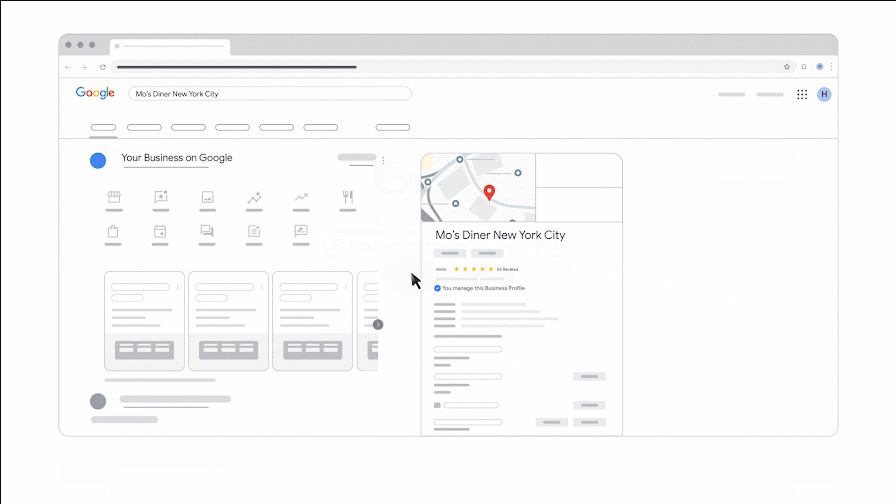
Google’s official illustrated example, not a live account capture. Look for the profile-management controls while signed into the correct account. Source: Google Business Profile Help. Select the image to enlarge. Update normal hours and exceptions
Choose Edit profile → Hours to adjust regular opening hours. Use Special hours for holidays and one-off changes rather than overwriting the weekly schedule. Save each change. If the business has no regular customer-facing hours, use Google’s hours guidance for that business type.
Review the services you actually offer
Open Edit services where available. Add or edit relevant services and descriptions, then save. Some controls depend on the business category. Remove services you no longer provide. Service areas describe where you travel; they are a separate setting from the list of services.
Add useful current photos
Open the photo controls and choose Add photos. Upload clear, approved pictures of the real business, work, team, or location. Google’s photo guidelines specify JPG or PNG, 10 KB to 5 MB, with 720 × 720 pixels recommended and 250 × 250 minimum. Do not stretch a small photo to meet a size target. Google may select a different cover image from the one you prefer.
Check review status and the public listing
Saved edits may be pending or rejected. Review the status in the profile, then inspect the public result in Search and Maps. Check the phone link, website destination, and any upcoming special hours. If Google changes information based on other sources, compare it with your actual business facts before accepting or correcting it.
You’re finished when…
The approved public listing shows the correct hours, relevant services, and usable photos. Pending items have a follow-up date.
If you get stuck
My change is not public yet
Check the edit status. Google reviews changes; the saved form and public listing can differ while a review is pending.
Edit services is missing
Availability depends on your business category and account interface. Do not choose an inaccurate category just to unlock a control.
Should I upload something every week?
Update the profile when there is something accurate and useful to add. You do not need to manufacture changes to make it look busy.
Official sources and further reading
- Google: edit your profile
- Google: manage business hours
- Google: special hours
- Google: services
- Google: photo requirements
Reviewed September 6, 2026. Platform menus can vary by account and change over time. Examples and checklists are WinflowAI’s own guidance; follow the linked vendor instructions for your account.
Useful next guides

Need help with your website or inquiry workflow? See how WinflowAI can help.