Website care
What photos and files to send your website designer
Your designer needs photos that help a customer understand the business: what you do, who does it, and what visiting or hiring you looks like.
The whole process, at a glance
- Show the real business1 of 3
- Keep original quality2 of 3
- Share one organized folder3 of 3
Before you start
This is for whoever gathers project content. Use one shared folder, keep the original files, and confirm which people and locations may appear publicly.
A practical example
| Folder | Include |
|---|---|
| Logos | Original vector + transparent PNG |
| Team and location | Who customers will meet and where |
| Services | Real work, tools, and process |
| Approved work | Finished examples with captions |
| Notes | Usage permission, credits, and missing items |
Follow these steps
Collect a small, useful set
Start with the team, the storefront or workspace, the main services, and examples of completed work you have permission to show. For a service business, show real equipment and people doing the work. A wide image can help at the top of a page; close-ups explain details. A handful of strong photos is more useful than hundreds of near duplicates.
Send the originals
Upload original camera or phone files instead of screenshots of photos or copies saved from a messaging app. Those copies may have lost detail. Keep an untouched originals folder. Your designer can make smaller web versions after choosing the right crop. See the photo-resizing guide if you are preparing files yourself. In Google Drive on a computer, use New → New folder, enter a project name, and choose Create. Open the folder, then use New → File upload or Folder upload to select the originals. Wait until the upload finishes.
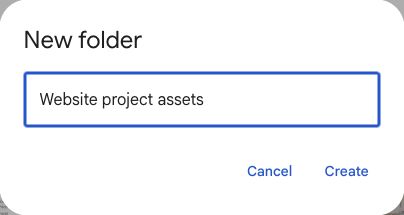
Give the project one clearly named folder. This is a real Drive dialog with an example name; the capture was canceled without creating a folder. September 6, 2026. Select the image to enlarge. 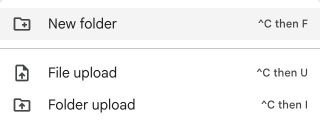
Inside the intended project folder, use New → File upload for individual originals or Folder upload for an organized set. Actual Google Drive menu, September 6, 2026. Select the image to enlarge. Include the right logo files
Send SVG or another original vector file if available, plus a high-resolution transparent PNG. Include dark and light versions if the brand has them. A JPEG logo with a white rectangle may not work on a dark background. Do not rename a JPEG to .svg; that changes the filename, not the file type.
Add captions and permissions
Use descriptive filenames and a short notes document: what the photo shows, the service or project, preferred placement, and any restrictions. Confirm permission for recognizable people, customer premises, testimonials, and licensed stock. Remove private paperwork, customer contact details, badges, or visible screens from the set you approve for publication.
Share the folder and test the link
Organize folders such as 01 Logos, 02 Team, 03 Services, and 04 Work examples. Invite the designer with suitable access. Ask them to confirm that they can download originals. Mark missing photos and dates rather than delaying the whole project without explanation. In Drive, right-click the project folder and choose Share → Share. Enter the designer’s email, review the role, and send the invitation. Viewer can normally download; use Editor if the person also needs to organize or add files. Keep general access restricted unless wider sharing is intended, and check for any download restrictions or organization rules.
You’re finished when…
The designer can download original files, identify what each one shows, and tell which assets are cleared for the website.
If you get stuck
Are phone photos good enough?
Often, yes. Use good light, a clean lens, and steady framing. Avoid digital zoom and heavy filters. Let the designer see the original before deciding whether another shoot is needed.
Can I send a gallery link and password?
Yes, if it allows downloading the original files. Put the password in your normal project conversation and confirm the gallery will remain available long enough.
Can we use images from Google search?
A search result is not permission to republish the image. Use your own assets or images with a license that covers the intended use.
Official sources and further reading
- Google Drive: share files and access settings
- W3C: choosing useful image alternatives
- Google Drive: create and organize folders
- Google Drive: upload original files and folders
- Google Drive: share a folder and choose permissions
Reviewed September 6, 2026. Platform menus can vary by account and change over time. Examples and checklists are WinflowAI’s own guidance; follow the linked vendor instructions for your account.
Useful next guides

Need help with your website or inquiry workflow? See how WinflowAI can help.