Google and local search
How to set up Google Analytics 4 for your website
Google Analytics 4, or GA4, shows how people find and use your website. Setup has three parts: a property for your website, a web data stream, and the Google tag on your pages.
The whole process, at a glance
- Create the property1 of 3
- Add the web stream2 of 3
- See your first visit3 of 3
Before you start
Sign in with a Google Account the business controls, not a personal login that could leave with a former employee or contractor. Have your website address, reporting time zone, and currency ready. You also need permission to edit the website, or someone who can add the tag for you. If GA4 may already be installed, ask whoever built the website first. A second property splits your data.
Follow these steps
Start in Google Analytics
Open Google Analytics while signed in to the business Google Account. The first time, select Start measuring. If the account already uses Analytics, go to Admin → Create → Account instead. Name the account after the business, review the data-sharing settings, and select Next.
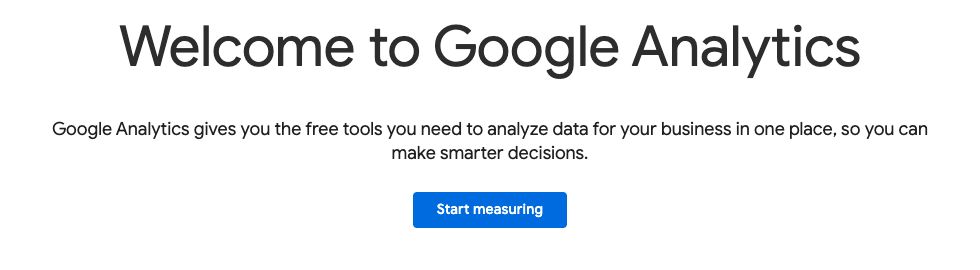
Actual Google Analytics welcome screen, captured September 6, 2026 while setting up WinflowAI’s own account. Select Start measuring to begin. Select the image to enlarge. Create the property
A property holds the reports for your website. Enter a property name, such as the business name followed by “website”. Choose the reporting time zone and currency, then select Next. Add your industry and business size, choose how you plan to use Analytics, such as Generate more leads, and select Create. Accept the terms of service to finish.
Level What it holds Account The business. One account can hold several properties Property One website or app and its reports Data stream The connection that sends your website’s activity to the property Add a web data stream
When Analytics asks for a platform, choose Web. Enter your website address, such as
example.com, and a stream name. Leave Enhanced measurement on. It records actions such as scrolls, outbound clicks, and file downloads without extra code. Select Create stream.
Actual web stream settings, captured September 27, 2026 in WinflowAI’s own property. Leave the switch on; the chips show what it records automatically. Select the image to enlarge. Copy your Measurement ID
Open Admin → Data streams and select your web stream. Under Stream details, copy the Measurement ID. It starts with
G-. This ID is not a password, so you can send it to the person adding the tag.
Actual Stream details, captured September 27, 2026 in WinflowAI’s own property. The Measurement ID is on the right; use the copy button beside it. It is already public in the website’s code. The internal stream ID is hidden. Select the image to enlarge. Add the Google tag to your website
If your website builder has a Google Analytics setting, paste the Measurement ID there and publish. Otherwise, in your data stream select View tag instructions → Install manually. Copy the whole snippet and paste it immediately after the
<head>tag on every page, or in your builder’s custom code area for the site header. Use one method only. Installing the tag twice can count each visit twice.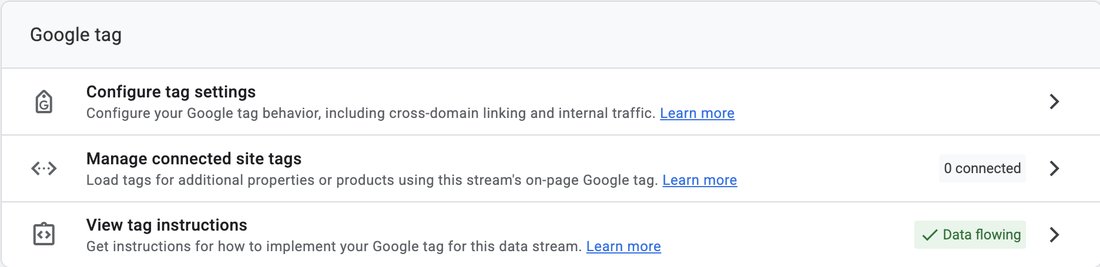
In your web stream, scroll to the Google tag section and select View tag instructions. Actual interface, captured September 27, 2026 in WinflowAI’s own property. Select the image to enlarge. 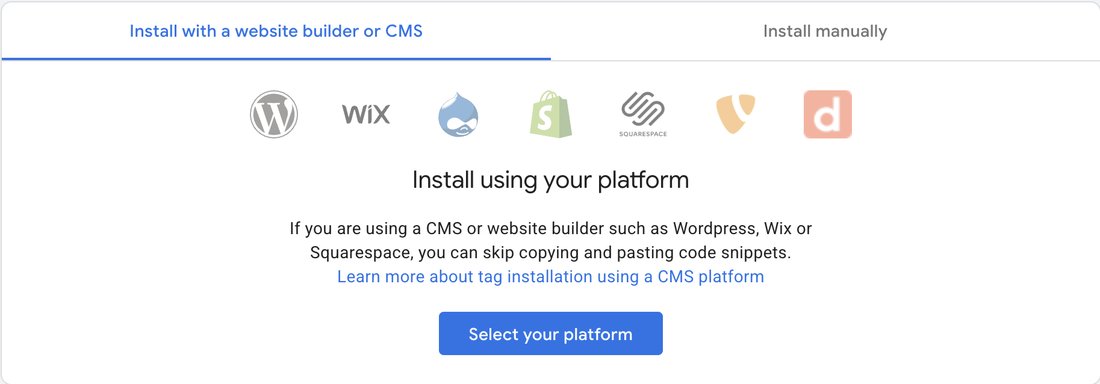
If your platform is listed, this tab walks you through adding the ID without code. Actual interface, captured September 27, 2026 in WinflowAI’s own property. Select the image to enlarge. 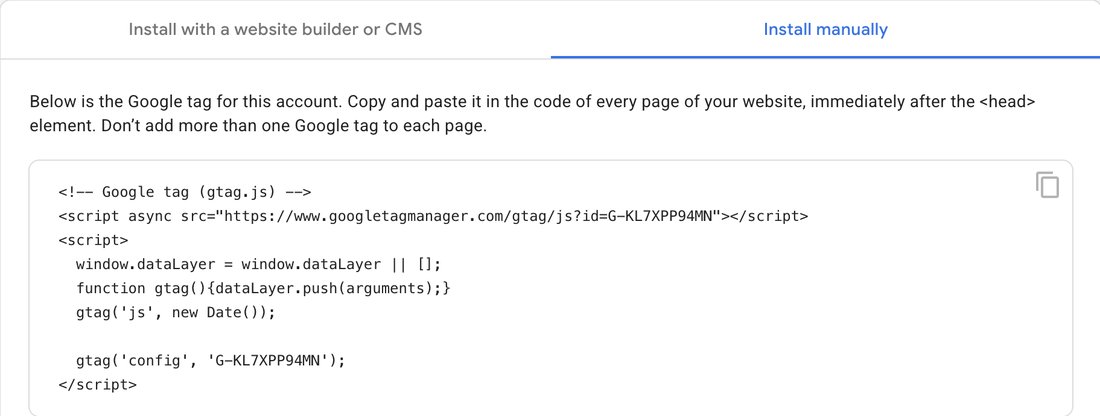
The Install manually tab shows the full snippet and a copy button. Yours will contain your own Measurement ID. Actual interface, captured September 27, 2026 in WinflowAI’s own property. Select the image to enlarge. Check the Realtime report
Data collection can take up to 30 minutes to begin. After that, open your website in another tab or on your phone. In Analytics, open Reports → Realtime overview. Your visit should appear within a minute or two. If your site shows a cookie banner, accept analytics cookies during the test, or your visit may not be counted.
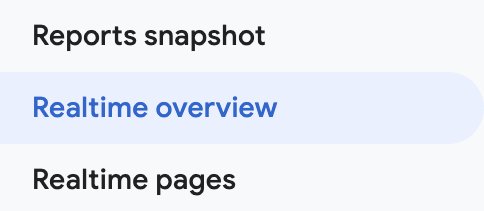
Open Reports, then Realtime overview. Actual menu, captured September 27, 2026 in WinflowAI’s own property. Select the image to enlarge. 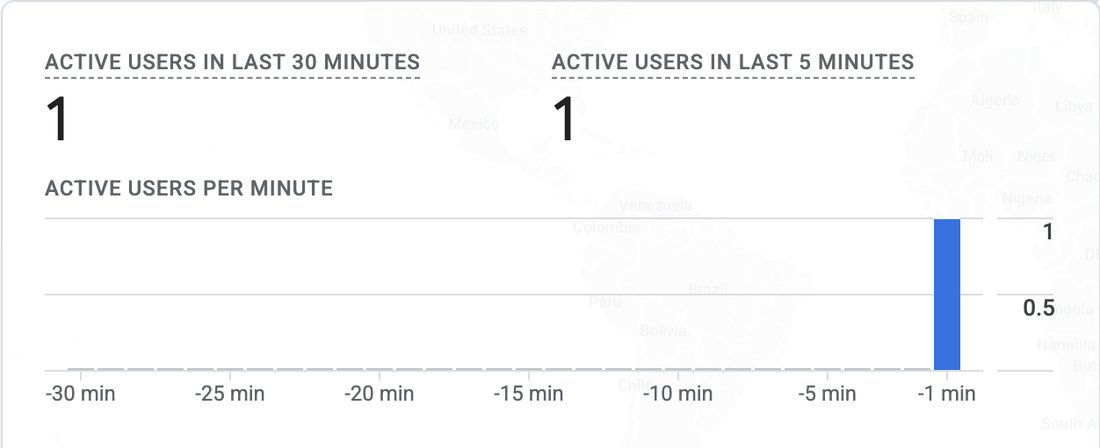
A single test visit showing up in Realtime within a minute. This was our own test visit to winflowai.com, September 27, 2026 in WinflowAI’s own property. Select the image to enlarge.
You’re finished when…
Your website appears as a web data stream in the property, the Google tag is installed once, and a test visit shows up in the Realtime report. The business Google Account keeps Administrator access.
If you get stuck
Nothing shows in the Realtime report
Wait 30 minutes after publishing, then visit again. Check that the Measurement ID on the website matches the one in your data stream and that the website change was published. Test in a private window with ad blockers off, and accept analytics cookies if your site asks.
Should I create a new property if one already exists?
Usually not. Ask whoever built or manages the website whether GA4 is installed and who has access. If you only need to get into an existing property, see how to share GA4 access.
Can I send form answers to Analytics?
No. Google does not allow names, email addresses, phone numbers, or similar personal details in Analytics. To understand where inquiries come from, see how to track website inquiries.
Do I need a cookie banner?
It depends on where your visitors are and the privacy rules that apply to your business. GA4 uses cookies. Check your requirements before relying on the data.
Official sources and further reading
- Google: set up Analytics for a website
- Google: enhanced measurement events
- Google: Realtime report
- Google: avoid sending personally identifiable information
Reviewed September 27, 2026. Platform menus can vary by account and change over time. Examples and checklists are WinflowAI’s own guidance; follow the linked vendor instructions for your account.
Useful next guides

Need help with your website or inquiry workflow? See how WinflowAI can help.