

Google and local search
How to create a LinkedIn company page
You can create a LinkedIn company page for free from your own LinkedIn profile. The Page gives your business its own place on LinkedIn, with your logo, description and a link to your website.
The whole process, at a glance
Before you start
The owner or a trusted manager should do this from their own personal LinkedIn account, because a Page can’t exist without a person behind it. Have the business name, website, industry, company size and company type ready, plus a logo and a one-line tagline. Search LinkedIn for the business name first, because a Page may already exist.
Follow these steps
Check that the business has no Page yet
Type the business name in the LinkedIn search box, then click Companies to show only Pages. If a Page for your business already exists, don’t create a second one. Ask for admin access instead (see the questions below). LinkedIn may also stop you creating a duplicate.
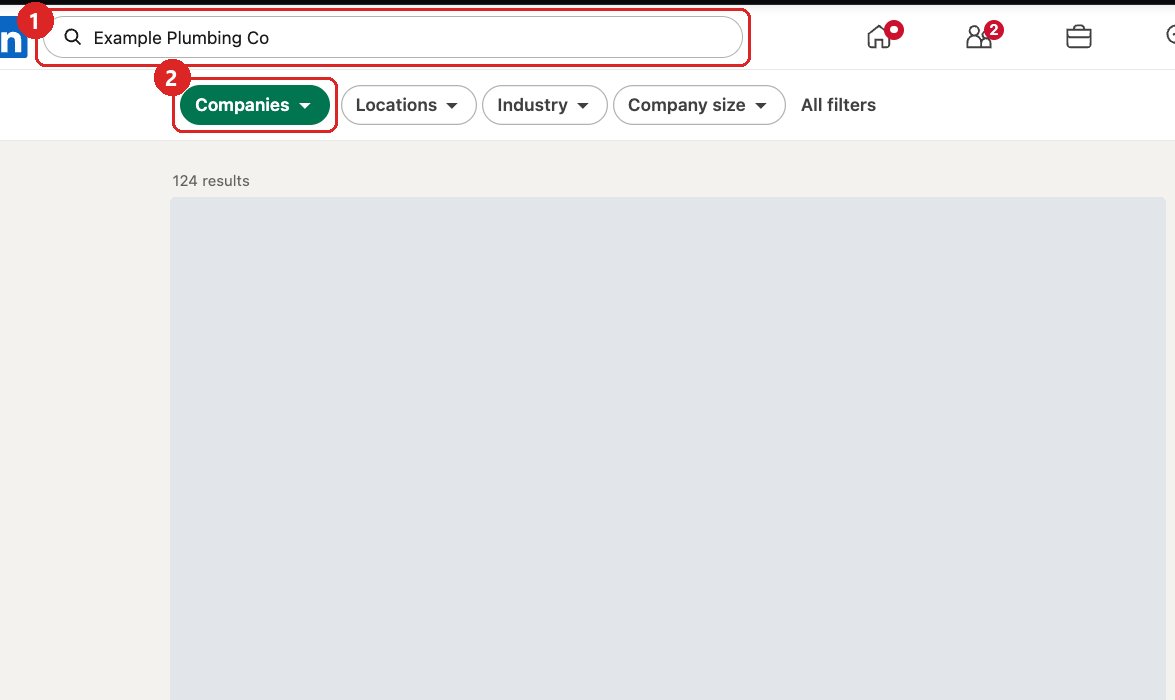
Captured November 22, 2026 in a signed-in browser. The search term is an example, and the companies in the results are covered. Click the image to enlarge. Open the create form
On a computer, click For Business in the top right of your LinkedIn homepage. A panel opens on the left. Click Create a Company Page at the bottom of it. You can also create a Page in the iPhone app, but not in the Android app.

Captured November 22, 2026 in a signed-in browser. The profile photo is covered. Click the image to enlarge. 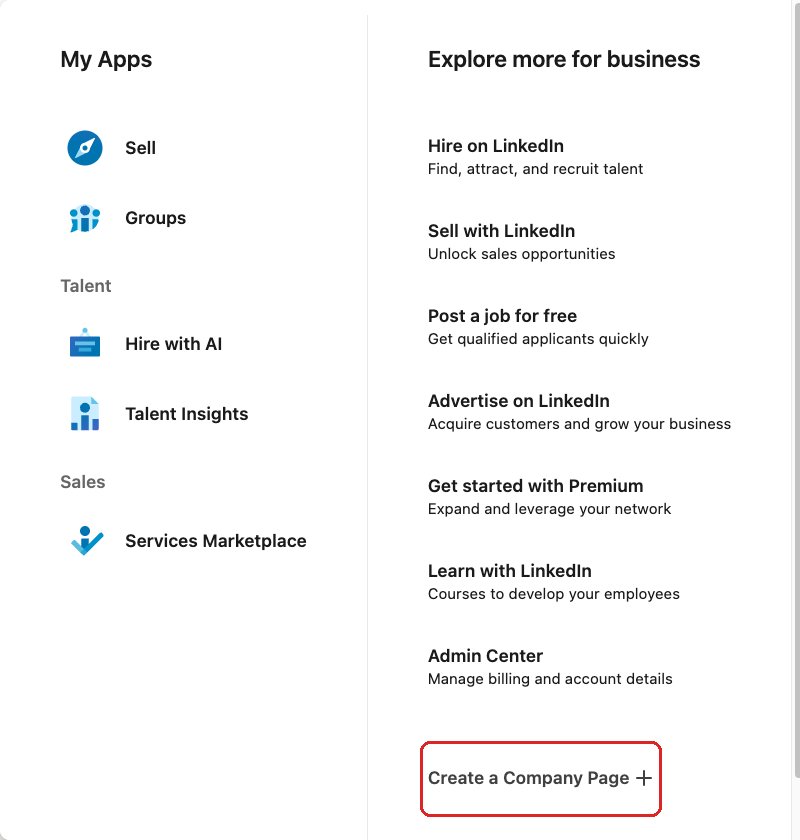
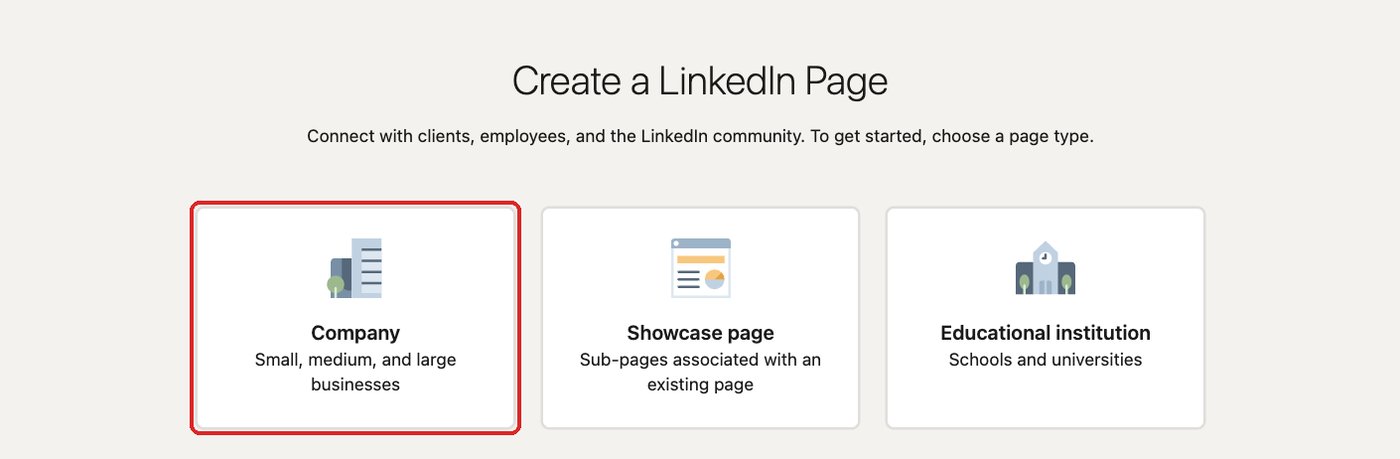
Captured November 22, 2026 in a signed-in browser. Nothing was created. Click the image to enlarge. Pick the Page type
Click Company. The other choices, Showcase page and Educational institution, are for sub-brands of an existing Page and for schools.
Captured November 22, 2026 in a signed-in browser. Nothing was created. Click the image to enlarge. Fill in the details
Type the company name and pick your public LinkedIn URL. It must be unique and starts with linkedin.com/company/. If it’s taken, try a small variation. Add your website. For Industry, start typing and click the closest match. Pick the company size and company type, and add a tagline if you have one.
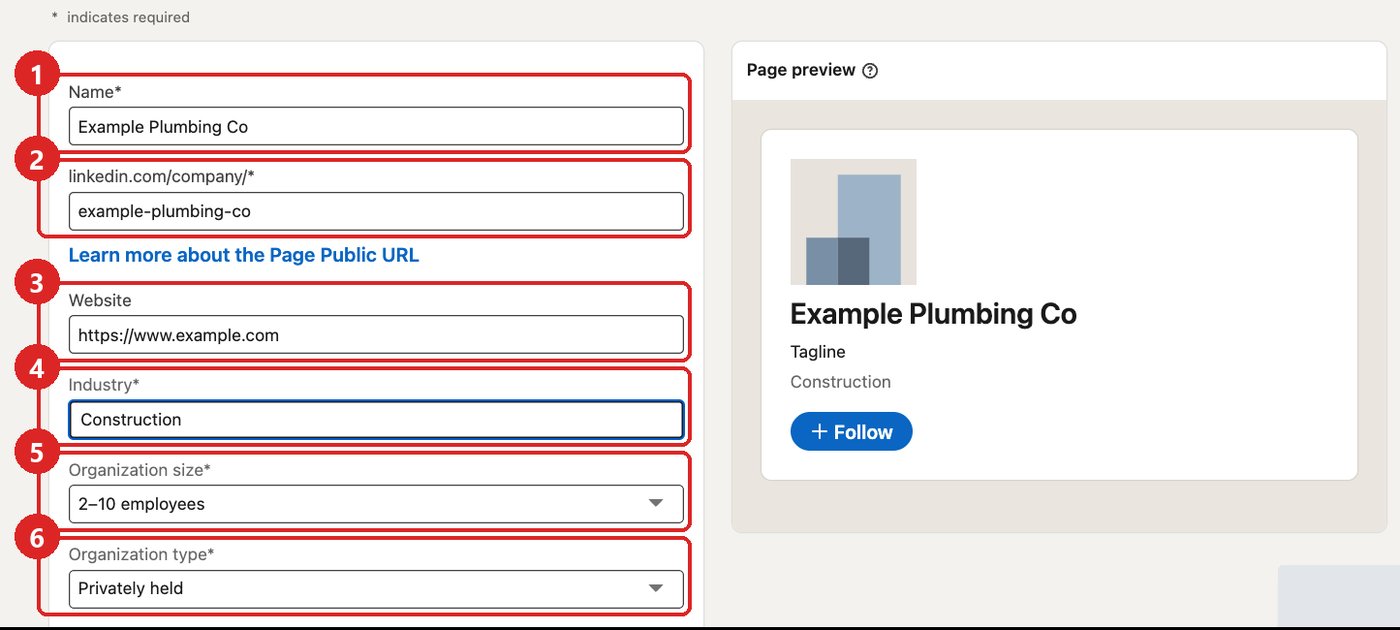
Captured November 22, 2026 in a signed-in browser, with example details typed in. Nothing was created. The messaging bar is covered. Click the image to enlarge. 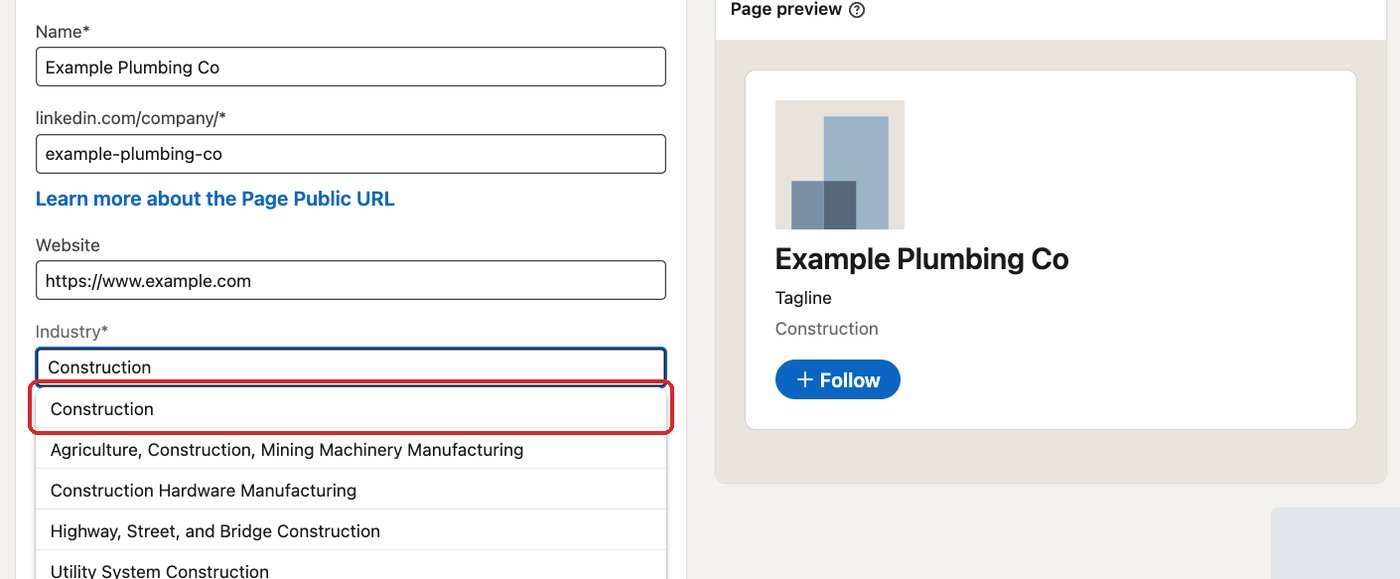
Captured November 22, 2026 in a signed-in browser, with example details typed in. Nothing was created. The messaging bar is covered. Click the image to enlarge. Confirm and create
Tick the box that confirms you have the right to act for the business. Then click Create page. In the iPhone app, tap Create in the top right.
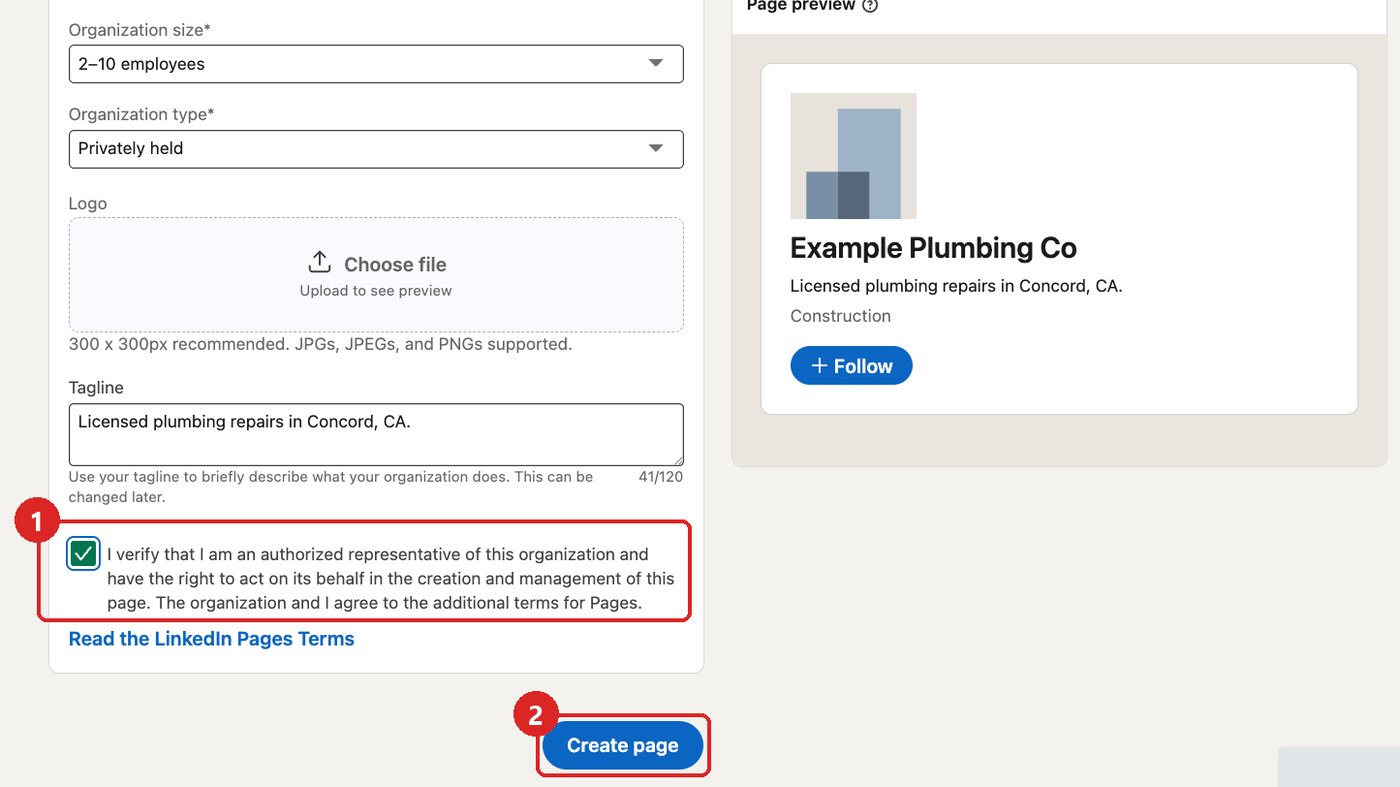
Captured November 22, 2026 in a signed-in browser, with example details typed in. Nothing was created. Create page was not clicked. The messaging bar is covered. Click the image to enlarge. Finish the Page and add admins
Click Start building your page! Add your logo, description, website and location. You are now the Page’s super admin. In the admin view, click Edit page in the left menu to change these later. To add someone, click Settings in the same menu, then Manage admins and Add admin. Search for the person and pick a role. Give each person the smallest role they need.
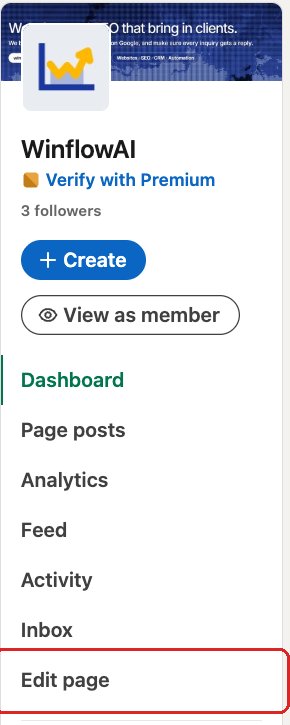
Captured November 22, 2026 in WinflowAI’s own LinkedIn Page. Nothing was changed. Click the image to enlarge. 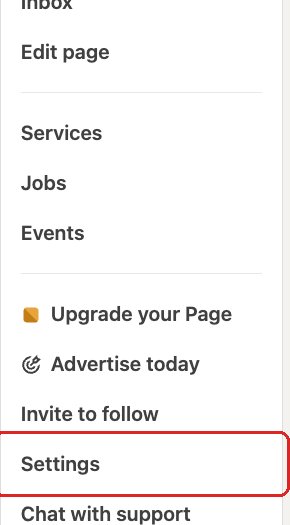
Captured November 22, 2026 in WinflowAI’s own LinkedIn Page. Nothing was changed. Click the image to enlarge. 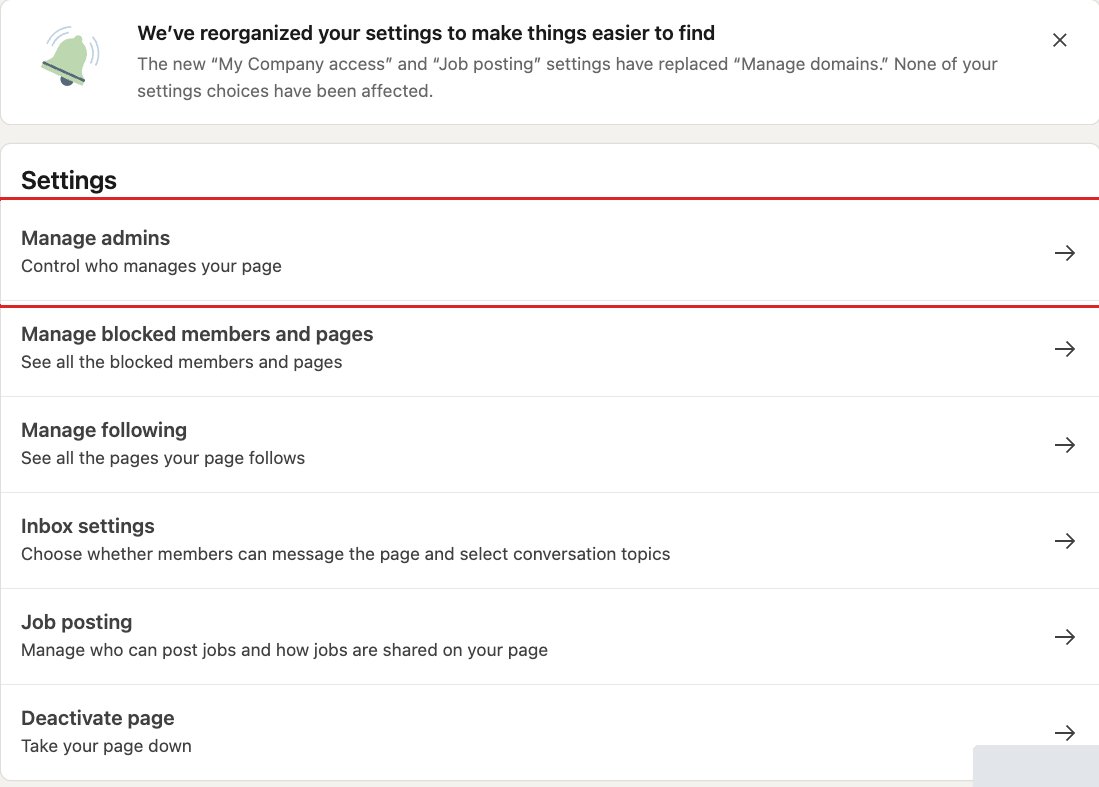
Captured November 22, 2026 in WinflowAI’s own LinkedIn Page. Nothing was changed. The messaging bar is covered. Click the image to enlarge. 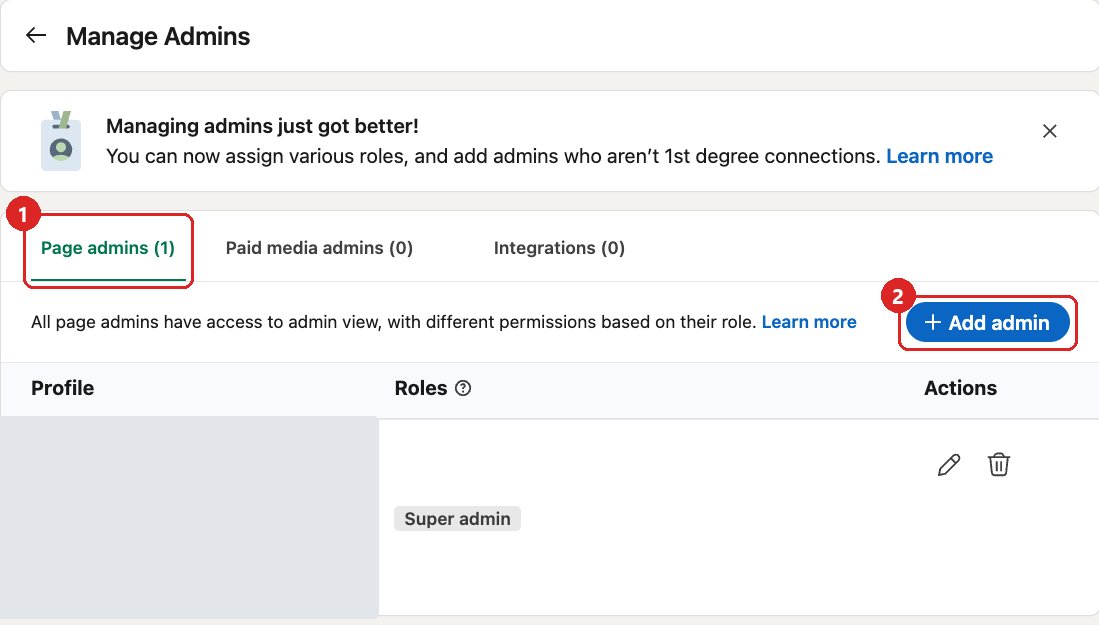
Captured November 22, 2026 in WinflowAI’s own LinkedIn Page. Nothing was changed. The admin’s profile is covered. Click the image to enlarge. 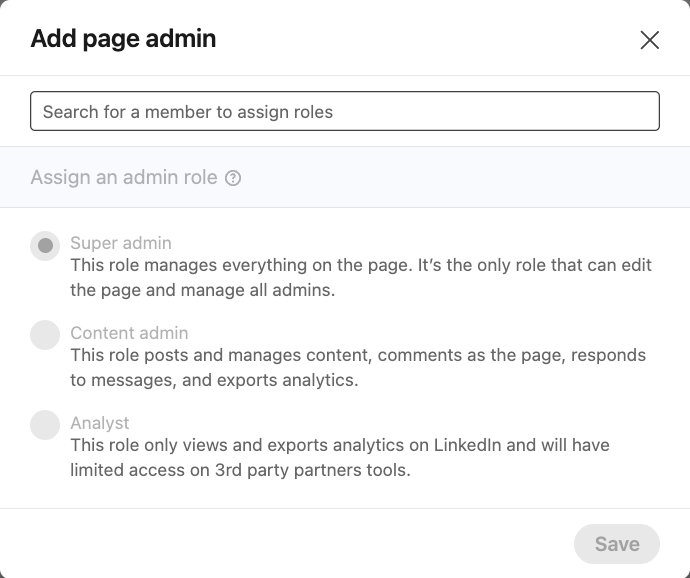
Captured November 22, 2026 in WinflowAI’s own LinkedIn Page. Nothing was changed. Nobody was added. Click the image to enlarge.
You’re finished when…
Your Page opens in the admin view with you as super admin, and it shows your logo, description and website at linkedin.com/company/ followed by your chosen URL.
If you get stuck
The Page already exists. How do I get access?
Open the Page, click More, then Request admin access. Tick the box and click Request access. Your profile must list the business as your current job under Experience, and you must follow the Page. A current super admin approves the request, and you get a notification when they do.
Nobody manages the Page
If LinkedIn created the Page itself, a current employee may see Claim this page in the top right. Tick the box and click Confirm. If you don’t see the button, list the business as your current job and contact LinkedIn support. Support can’t tell you who the current admins are.
How do I give my agency access?
Ask the agency to click Request admin access on your Page. Then open Settings, Manage admins, and click Assign role next to their name under Pending admin requests. A Super admin is the only role that can edit the Page and manage all admins. A Content admin posts and manages content, comments as the Page, responds to messages and exports analytics. An Analyst only views and exports analytics. Keep at least one super admin inside the business.
LinkedIn won’t let me create the Page
LinkedIn lists a few reasons. A Page for the business may already exist, or the URL is taken. Your account may be less than a day old or have fewer than two connections. You may have created too many Pages in one day. Clearing your browser cache or trying another browser can also help.
Is it free?
Yes. Creating and running a Page is free. Ads, job posts and a Premium Company Page are paid extras you don’t need.
Official sources and further reading
- LinkedIn: create a LinkedIn Page
- LinkedIn: troubleshoot creating a Page
- LinkedIn: request admin access to a Page
- LinkedIn: claim a Listing Page
- LinkedIn: Page admin roles
- LinkedIn: add an admin who requested access
- LinkedIn: request Page verification
Reviewed November 22, 2026. Platform menus can vary by account and change over time. Examples and checklists are WinflowAI’s own guidance; follow the linked vendor instructions for your account.
Find these guides useful? Add WinflowAI as a preferred source and our guides show up first for you on Google.
Tell us what's going on
A few lines about what's bugging you is plenty. We'll reply within one business day with what we'd do about it.
Rather hand it off? Our local SEO services cover your Google Business Profile, listings and on-page SEO.