

Google and local search
How to create a Facebook business page
You can create a Facebook business page for free from your personal Facebook profile. The Page is public and search engines may show it, while your personal profile details stay off it unless you add them.
The whole process, at a glance
Before you start
The owner or a manager should do this on a computer, signed in to their own Facebook profile. A Page can’t be created without one. Have the business name, a one or two sentence description, a logo, a cover photo, your phone, email, website and hours ready.
Follow these steps
Start the Page
On a computer, click See more in the left menu of Facebook, then Pages. Click + Create Page at the top left. If Facebook asks what kind of Page you want, click Public page, then Next and Get started.
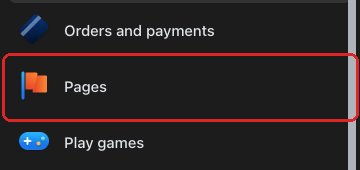
Captured November 22, 2026 in a signed-in browser, in Facebook’s dark mode. Nothing was created. Click the image to enlarge. 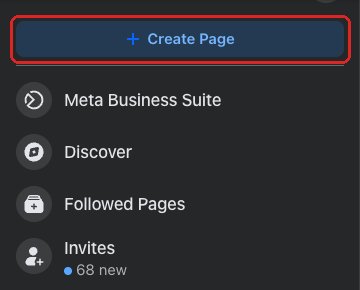
Captured November 22, 2026 in a signed-in browser, in Facebook’s dark mode. Nothing was created. Click the image to enlarge. Name it and pick a category
Type your business name as customers know it. Start typing a category that describes what you do and click the closest match in the list. Add a short bio if you want, then click Create Page. You can add more categories later.
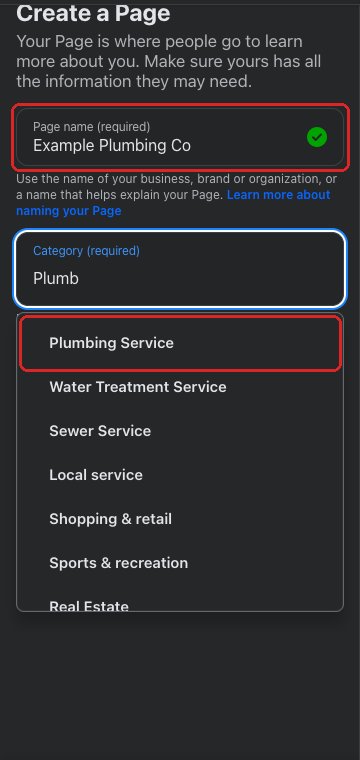
Captured November 22, 2026 in a signed-in browser, in Facebook’s dark mode, with example details typed in. Nothing was created. Click the image to enlarge. 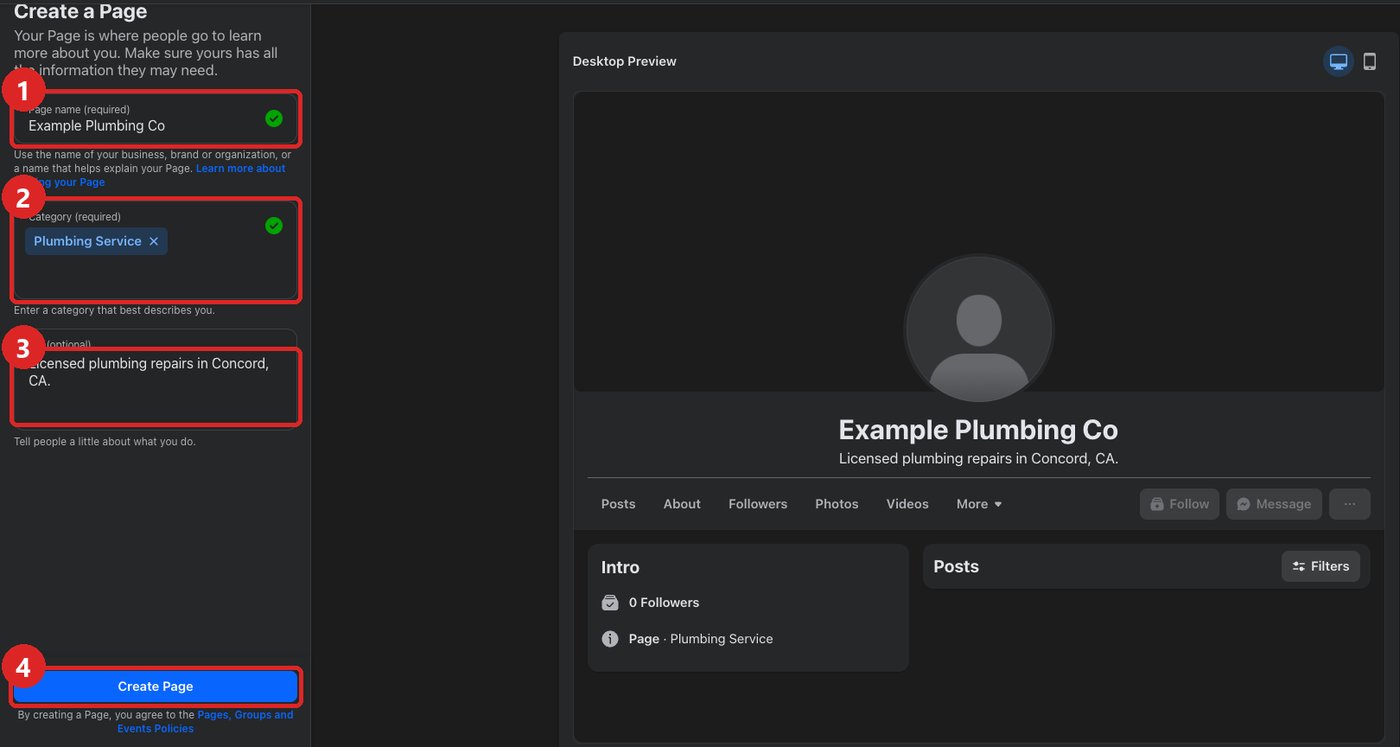
Captured November 22, 2026 in a signed-in browser, in Facebook’s dark mode, with example details typed in. Nothing was created. Create Page was not clicked. Click the image to enlarge. Add contact details, hours and photos
Facebook then walks you through contact details, location and hours. Add a profile picture, usually your logo, and a cover photo. Set the action button, such as Call or Send message. Click Skip on the WhatsApp step if you don’t use it, then click Next until you reach Done.
Check the address and map pin
Open the Page and click Switch Now to switch into it. Click About, then Details. Click the pencil next to Address, enter the address, drag the red pin onto your building and click Save. If customers don’t visit you, leave the address out and fill in Service area on the same screen. Page details are public. Facebook asks for an address before you can add hours.
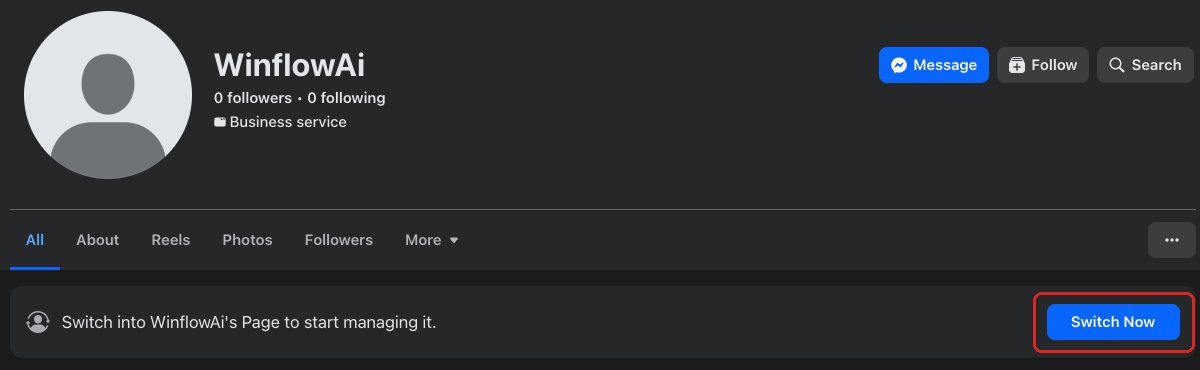
Captured November 22, 2026 in WinflowAI’s own Facebook Page, in Facebook’s dark mode. Nothing was changed. Click the image to enlarge. 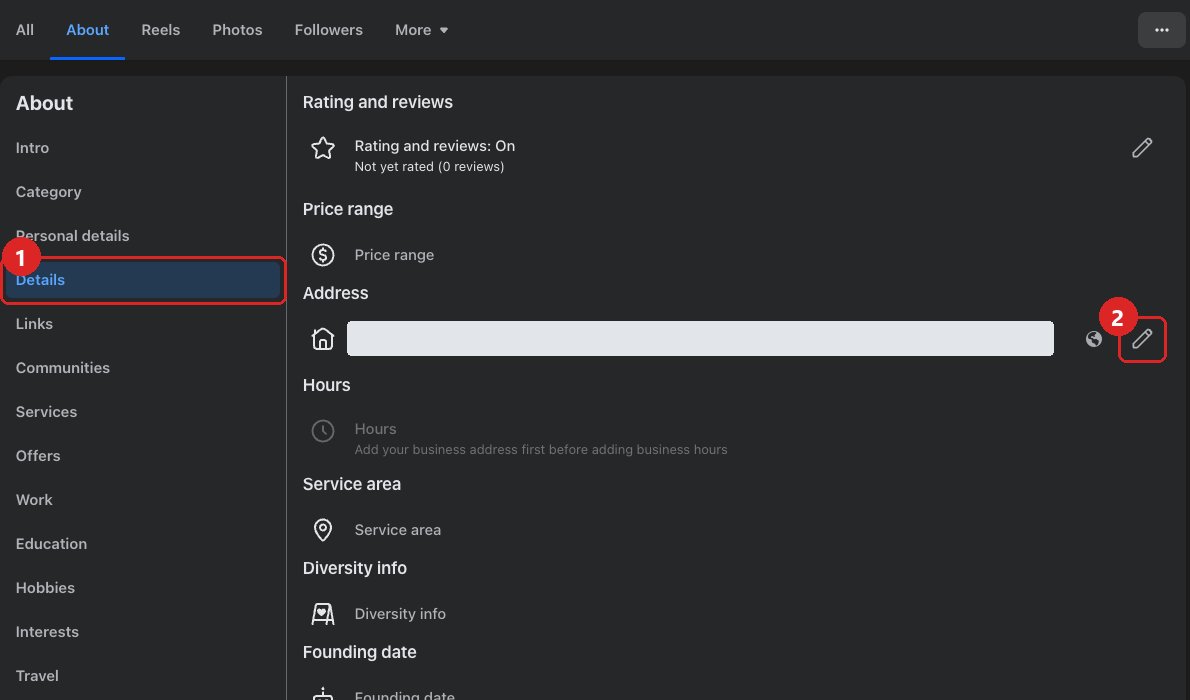
Captured November 22, 2026 in WinflowAI’s own Facebook Page, in Facebook’s dark mode. Nothing was changed. The Page’s address is covered. Click the image to enlarge. Give someone access
Switch into the Page. Click Settings in the left menu, then Page setup, then Page access. Next to People with Facebook access, click Add New, then Next, and type their name or email. Choose partial or full control, click Give Access and confirm with your password. They get an email to accept. If your Page belongs to a business portfolio, the screen lists People with full control and People with partial access instead. Click Manage next to the one you need.
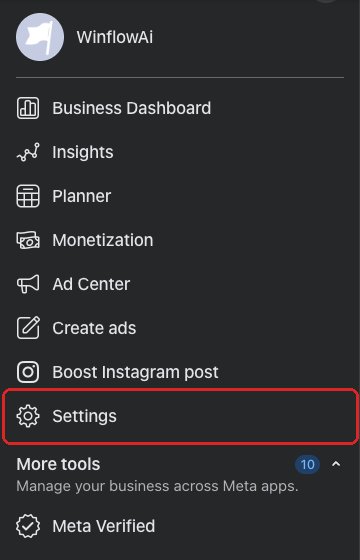
Captured November 22, 2026 in WinflowAI’s own Facebook Page, in Facebook’s dark mode. Nothing was changed. Click the image to enlarge. 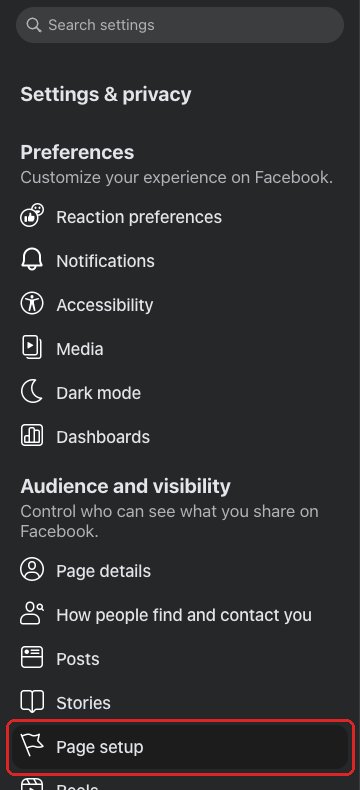
Captured November 22, 2026 in WinflowAI’s own Facebook Page, in Facebook’s dark mode. Nothing was changed. Click the image to enlarge. 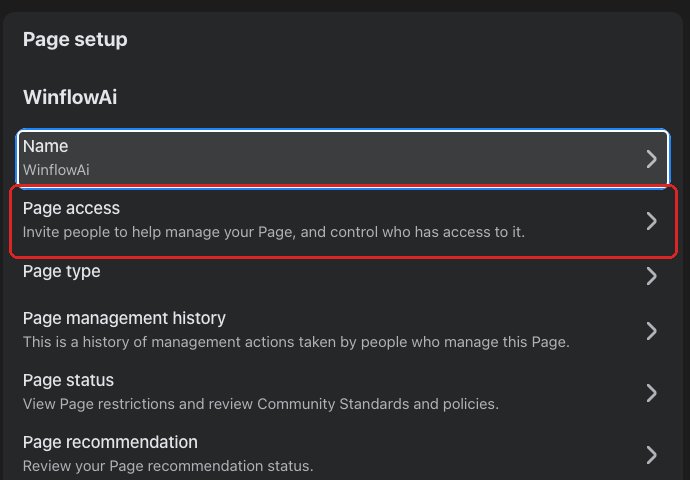
Captured November 22, 2026 in WinflowAI’s own Facebook Page, in Facebook’s dark mode. Nothing was changed. Click the image to enlarge. 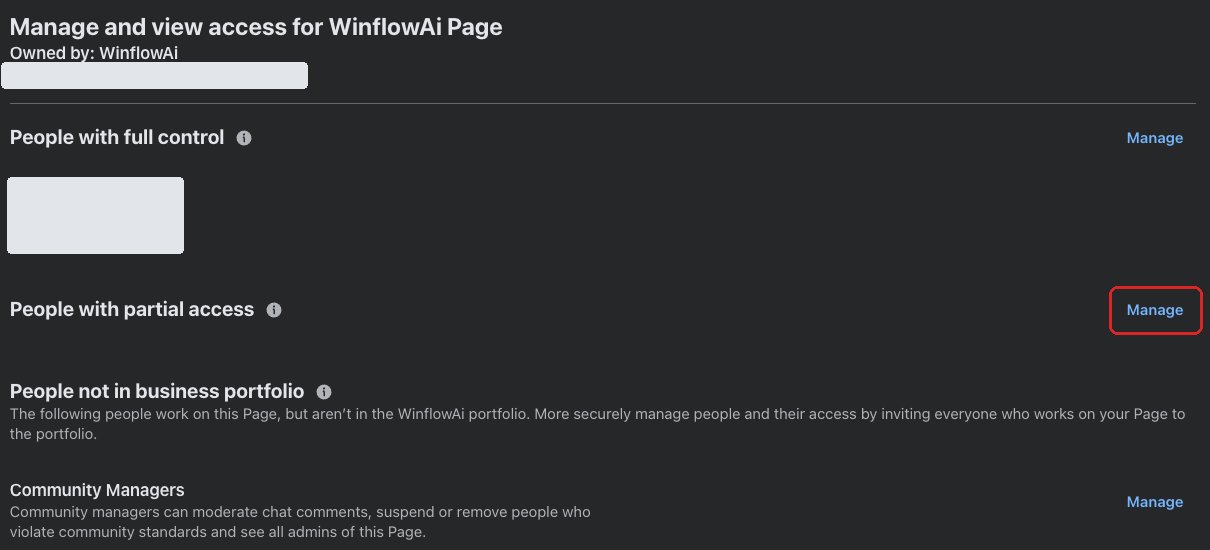
Captured November 22, 2026 in WinflowAI’s own Facebook Page, in Facebook’s dark mode. Nothing was changed. The admin and the business portfolio ID are covered. Click the image to enlarge. Keep full control inside the business
Give full control only to people you trust with the whole Page, and keep at least two of them. Facebook deactivates a Page that no one has full control of. People who only post or run ads can get task access instead, from the same Page access screen under People with task access.
You’re finished when…
Your Page opens in a logged-out browser with the right name, category, contact details and logo, and Page access lists you with full control.
If you get stuck
Someone else already made a Page for my business
Facebook has no claim form for that. Ask whoever has full control of the Page to add you. If you don’t know who that is, ask current or former staff and contractors. If the Page pretends to be your business, report it from the Page’s menu.
How do I give my agency access without handing over the Page?
In Meta Business Suite, the agency opens Settings, Pages, + Add, then Request shared access to a Facebook Page. You get the request and approve it. Shared access doesn’t change who owns the Page. Never add your Page to the agency’s business portfolio, because that makes their business the owner.
I have two Pages for the same business
You can merge them if they have the same name and address and you have Facebook access to both. Open Settings & privacy, Settings, Page setup, then View next to Merge Pages. The Page you merge away loses its posts, reviews and username, and a merge can’t be undone.
I work from home
Leave the street address out and add a Service area under About, Details instead. Facebook asks for an address before it lets you add hours, so you may have to leave hours off.
Is it free?
Yes. Creating and running a Page is free. Ads and paid verification are optional.
Official sources and further reading
- Meta: create a Facebook Page
- Meta: set up your Facebook business Page
- Meta: about Facebook Pages
- Meta: add or edit an address for your Page
- Meta: give, edit or remove Page access
- Meta: request access to a Page in Meta Business Suite
- Meta: request Facebook access to a Page
- Meta: merge two Facebook Pages
Reviewed November 22, 2026. Platform menus can vary by account and change over time. Examples and checklists are WinflowAI’s own guidance; follow the linked vendor instructions for your account.
Find these guides useful? Add WinflowAI as a preferred source and our guides show up first for you on Google.
Tell us what's going on
A few lines about what's bugging you is plenty. We'll reply within one business day with what we'd do about it.
Rather hand it off? Our local SEO services cover your Google Business Profile, listings and on-page SEO.