

Google and local search
How to claim your business on Bing Places
Bing Places for Business is Microsoft’s free tool for managing how your business shows on Bing and Bing Maps. If you already have a verified Google Business Profile, you can import it and skip most of the work.
The whole process, at a glance
- Sign in1 of 3
- Import or claim2 of 3
- Verify and publish3 of 3
Before you start
Sign in with a Microsoft, work, Google or Facebook account. Every listing you claim belongs to the account you sign in with, so use a business login you’ll keep. Have your business name, address, phone, website, hours and category ready. Bing Places moved to bing.com/forbusiness in October 2025, and the old bingplaces.com address redirects there.
Follow these steps
Sign in to Bing Places
Go to bing.com/forbusiness and select Sign in. Choose Google, Facebook, a Microsoft account or a work account. Pick the login you want to own the listing long term.
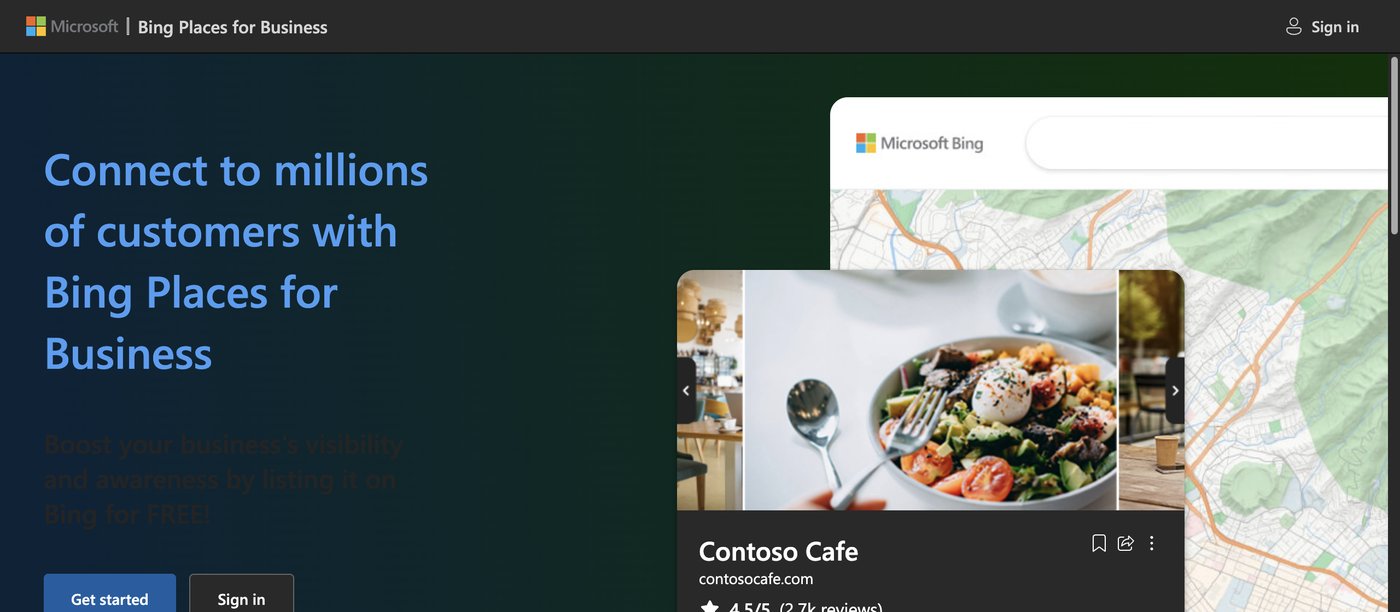
Captured November 6, 2026 in a signed-out browser, before any account was created. The business details are examples. Select the image to enlarge. 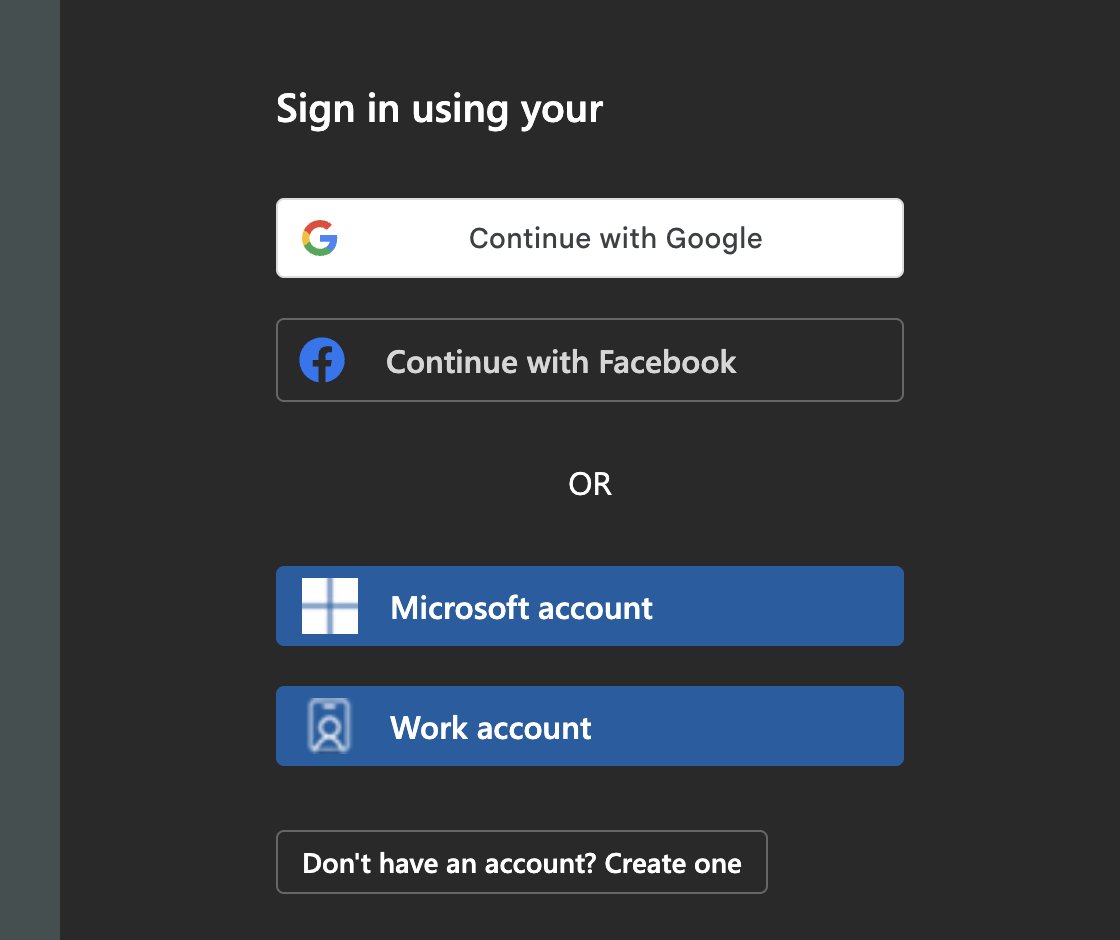
Captured November 6, 2026 in a signed-out browser, before any account was created. The business details are examples. Select the image to enlarge. Import from Google if your profile is verified
Select Import from your Google Business Profile. Choose a weekly, biweekly or monthly sync, sign in to Google, and import the listings it finds. If the Google profile is verified, Bing verifies the import for you. You can’t choose listings one by one, and you edit linked listings in Google, not in Bing. Skip this step if you’d rather manage Bing on its own.
Search for your listing
Choose your country, type your business name and location, then select Search. Choose the result that matches your address. If there is no listing, select Create a new business and fill in the details. If the business has moved, create a new listing at the new address instead of editing the old one.
Claim it and verify with a PIN
Claim the listing to start verification. Bing sends a PIN by phone, text, email or postcard, and not every option shows for every business. The phone option only appears if the listing already shows your business phone number. Postcards usually arrive in 5 to 6 business days in the US. Enter the six-digit PIN while signed in to the same account that asked for it.
Complete the listing
Check the name, address, phone, website, hours and category. Pick one primary category and up to nine more. Add your website, social links and up to 100 photos. If customers don’t visit your address, select your listing, choose Edit, and in Basic details answer “Are customers expected to visit your address?” You can list up to 20 service areas.
Wait for the publish cycle
Verified listings usually go live in 7 to 12 days in North America. Each edit restarts that clock, so make your changes in one sitting and then wait. The expected publish date shows next to your Verified status.
You’re finished when…
Your listing shows as Verified in Bing Places, the publish date has passed, and a Bing search for your business shows the correct details.
If you get stuck
Someone else already claimed it
Request access from the account that manages the listing so its owner can give you permission. If you don’t know who that is, contact Bing Places Support.
Can my agency manage the listing for me?
Bing’s help pages describe an agency account rather than a way to add users. The agency adds your listing to its own Bing Places account, and Bing sends a PIN to your business email or address. You or the agency enter that PIN to verify it. If someone else already manages your listing, ask them to give you permission, or contact Bing Places Support.
My listing is marked Duplicate
Editing is turned off on a listing marked Duplicate. Claim the published listing instead. Duplicates also appear after a Google import when the business was already on Bing.
The postcard never arrived
Wait at least 12 days from the request. Check with your local post office, then contact Support.
My changes aren’t showing
Bing checks your details against other sources before it publishes them. Wait out the 7 to 12 day cycle without more edits. If nothing has published after 12 days, contact Support.
Is it free?
Yes. Bing Places for Business is free.
Official sources and further reading
- Bing Places: frequently asked questions
- Bing Places: manage your listing
- Bing Places: get started
- Bing Places: sync your Google Business Profile
- Bing Places: businesses without a physical store
- Bing: introducing the new Bing Places for Business
- Bing Places: agencies
Reviewed November 6, 2026. Platform menus can vary by account and change over time. Examples and checklists are WinflowAI’s own guidance; follow the linked vendor instructions for your account.
Useful next guides

Need help with your website or inquiry workflow? See how WinflowAI can help.