Account access
How to share Namecheap domain access
Give your developer a separate way to manage the domain. You keep the account and decide which domain settings they can change.
The whole process, at a glance
- Choose the domain1 of 3
- Limit the permissions2 of 3
- Confirm access3 of 3
Before you start
Use Share Access for domain work. The recipient needs their own Namecheap account. This feature does not share SSL certificate management; website hosting and email may need separate arrangements. Ask the developer which settings the job requires.
Follow these steps
Open the correct domain
Sign in to Namecheap. Choose Domain List, then Manage beside the intended domain. Only its owner can share it; renew an expired domain first.
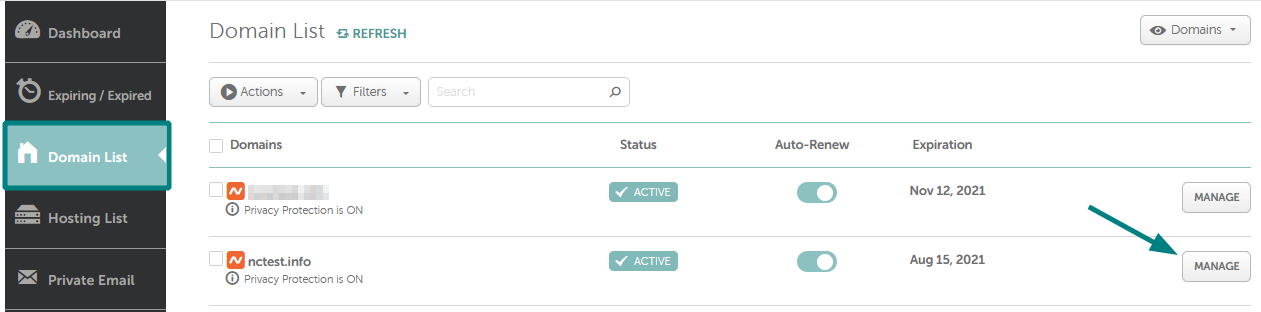
Choose Manage beside your domain. The old dates and nctest.info domain belong to Namecheap’s example. Unmodified Namecheap Help screenshot, checked September 6, 2026. Select the image to enlarge. Enter the new manager
Open Sharing & Transfer → Share Access. Enter the recipient’s Namecheap username or account email in New Manager, then choose Add. Double-check the spelling with the person doing the work.
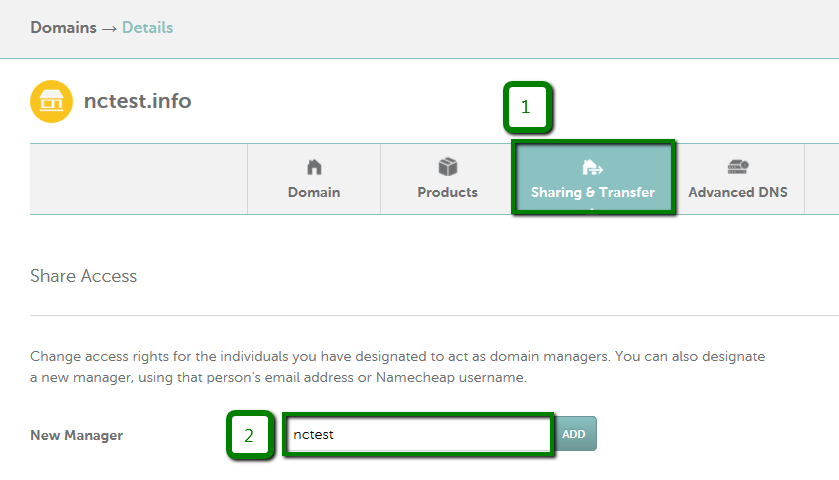
Use your recipient’s details in New Manager; nctest is only the example username. Unmodified Namecheap Help screenshot, checked September 6, 2026. Select the image to enlarge. Choose only the settings needed
Use Give manager some permissions. For a DNS-record task, review the relevant Advanced DNS options with your developer. DNS records are directions for website and email traffic. A request to connect a website does not automatically justify renewal, privacy, or domain-lock access. The domain, DNS, and hosting guide helps you identify the right service.
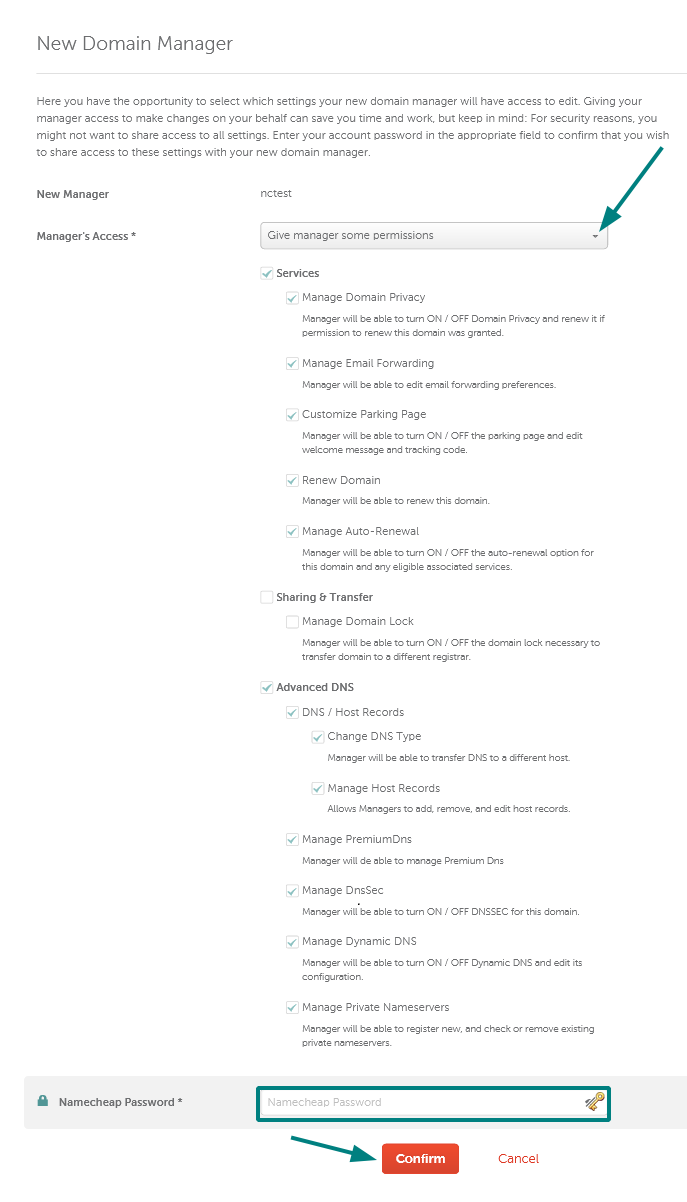
This official example has many boxes checked. Select only the permissions your task needs; do not copy its entire selection. Unmodified Namecheap Help screenshot, checked September 6, 2026. Select the image to enlarge. Confirm on Namecheap
Review the permissions, enter your own account password in Namecheap’s confirmation form, and choose Confirm. Keep that password to yourself. The developer uses their own account.
Check that the manager can open it
The recipient normally accepts the email invitation while signed into their Namecheap account in the same browser. The link lasts seven days; automatic acceptance is also possible. Ask them to confirm the correct domain and agreed controls are visible before starting work.
Cancel or remove access when finished
Return to Sharing & Transfer → Share Access → Manage. Use Cancel for a pending invitation, or the Edit dropdown → Remove for an accepted manager. Choose Done. Keep a note of who still needs access.
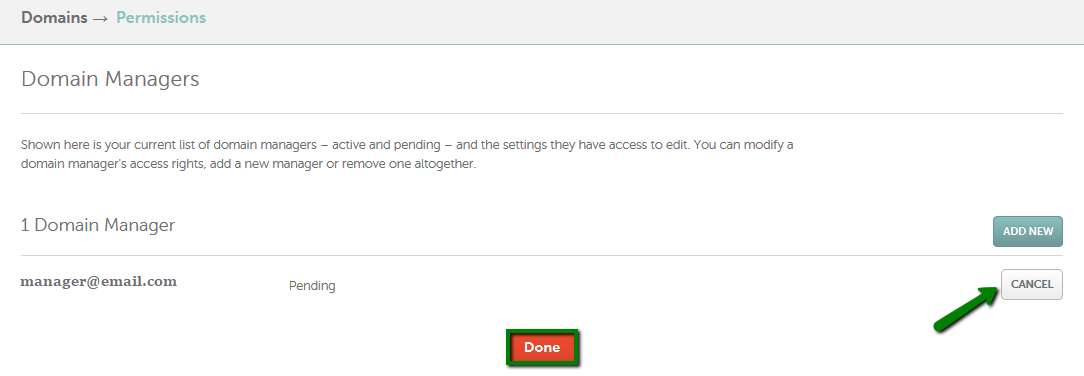
Cancel applies to an invitation that has not been accepted. The email shown is vendor example data. Unmodified Namecheap Help screenshot, checked September 6, 2026. Select the image to enlarge. 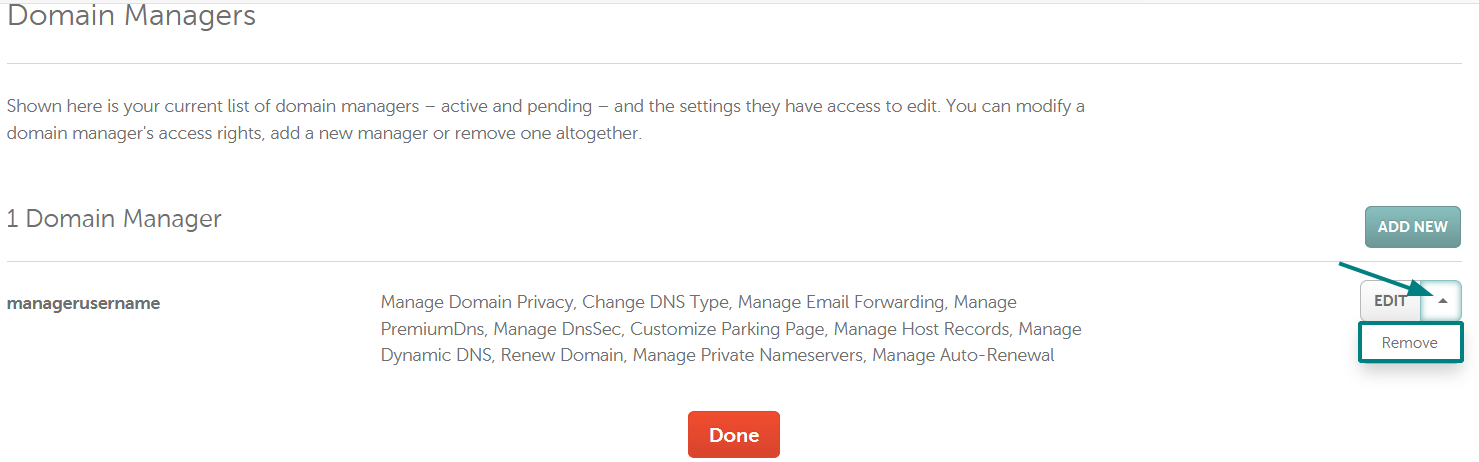
For an accepted manager, open the dropdown beside Edit and choose Remove, then Done. Unmodified Namecheap Help screenshot, checked September 6, 2026. Select the image to enlarge.
You’re finished when…
The developer can open the intended domain from their own login and sees only the permissions you agreed. You still control the owner account.
If you get stuck
Is this a domain transfer?
No. Share Access delegates selected domain-editing features while you retain control. Do not choose an ownership-transfer process just to let someone help with a website.
Can the developer manage my SSL certificate this way?
No. Namecheap says Share Access does not support its SSL service. Ask which separate certificate or hosting task is needed before granting anything else.
Which permissions should I tick?
Ask for the exact job: adding website records, changing nameservers, and configuring email are different tasks. Start with the smallest matching permission set. The many checked boxes in the official example are not a recommended checklist for your account.
The agency can see the domain but cannot edit the website
A domain account and a website editor do different jobs. Confirm where the website is hosted and which editor account the developer needs. Use the project checklist to collect those details.
Official sources and further reading
Reviewed September 6, 2026. Platform menus can vary by account and change over time. Examples and checklists are WinflowAI’s own guidance; follow the linked vendor instructions for your account.
Useful next guides

Need help with your website or inquiry workflow? See how WinflowAI can help.