Account access
How to share Google Search Console access
Search Console tells you how Google sees your website. Give your agency its own login access so it can investigate search issues while you keep ownership.
The whole process, at a glance
- Choose your website1 of 3
- Add the right role2 of 3
- Confirm they can open it3 of 3
Before you start
The website must already have a Search Console property, which is Google’s record for that site. Its owner should do these steps. Have the agency’s Google Account email and the exact website address ready.
Follow these steps
Choose the existing property
Open Search Console. Use the property selector at the upper left. A Domain property covers its subdomains and protocols; a URL-prefix property covers only the specified prefix. Check the address carefully. Access to
http://example.com/is not the same as access tohttps://example.com/. Do not create another property just to invite someone.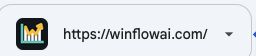
Use the property selector to check the website before sharing access. WinflowAI’s own property is the example. Captured September 6, 2026. Select the image to enlarge. Decide what the agency needs
For reporting alone, discuss Restricted access. For routine technical SEO work, Full is our usual suggestion: it supports more actions, including indexing requests. Keep Owner for people who genuinely need to manage ownership and users. Ask what task requires broader access before granting it.
Role Use it for Restricted Viewing much of the available data Full Reviewing data and performing supported site actions Owner Managing users, ownership, and settings 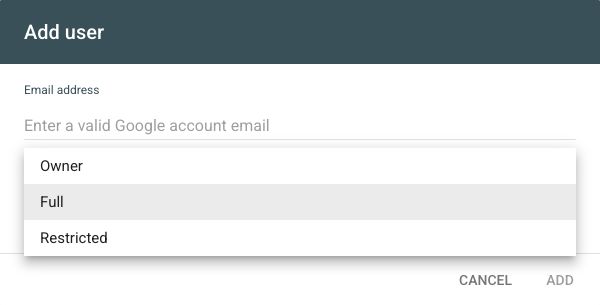
Actual permission menu, captured September 6, 2026. Full is selected here; choose the role that fits the agreed work. The screenshot is cropped to exclude account details. Select the image to enlarge. Add the person
Open Settings → Users and permissions → Add user. Enter their Google Account email, choose the agreed permission, and save. An email group is not a valid individual user. Only an owner can manage users.
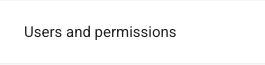
In Settings, open Users and permissions to reach the user list and Add user button. Captured September 6, 2026; existing users are outside the crop. Select the image to enlarge. 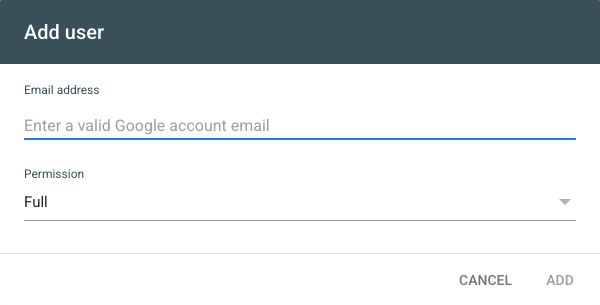
Actual Search Console interface, captured September 6, 2026 in WinflowAI’s own property. Enter the recipient’s Google Account email here. No user was added for this capture. Select the image to enlarge. Verify access from both sides
Check that the email and role appear in your user list. Send the agency the property name through your existing project conversation and ask it to open that property with its own account. Do not treat a sent email as proof that access works. No password exchange or separate ownership verification is needed for an ordinary user.
Remove access when the work ends
Return to Users and permissions, open the menu next to that user, and choose Remove access. If removing a verified owner, also review Google’s ownership-token instructions. A token is proof of ownership left on the website or its DNS; removing the person alone may let them verify again.
You’re finished when…
The agency can open the intended property, its role matches the agreed work, and you remain an owner.
If you get stuck
I cannot see Users and permissions
You may be signed into the wrong Google Account or have user access rather than ownership. Ask the existing property owner to add the agency.
There are several similar properties
Send the list of property names to your agency and agree which one it needs. Keep existing properties and data while you identify them.
They see a blank report
Confirm the selected property and date range first. Newly created properties may not have historical reporting. User access does not install tracking or guarantee that pages are indexed.
Official sources and further reading
Reviewed September 6, 2026. Platform menus can vary by account and change over time. Examples and checklists are WinflowAI’s own guidance; follow the linked vendor instructions for your account.
Useful next guides

Need help with your website or inquiry workflow? See how WinflowAI can help.