Google and local search
How to prepare your Google verification video
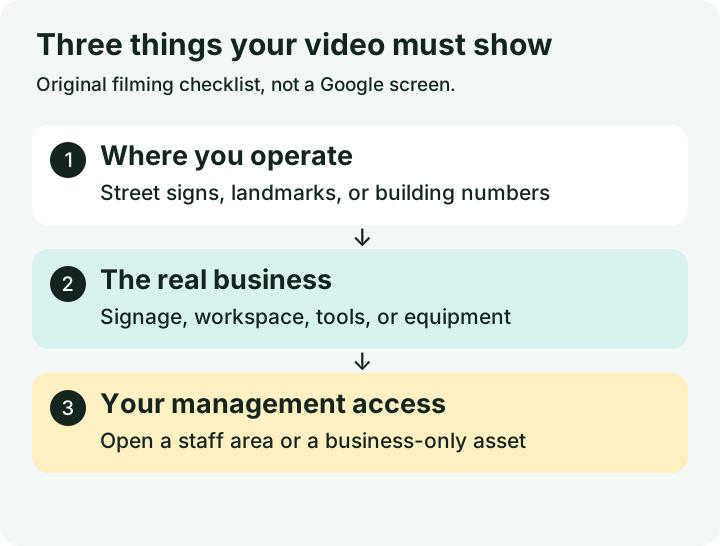
Google wants evidence that this business exists where you say it does and that you are allowed to manage it. Plan a short walk that shows all three parts.
The whole process, at a glance
- Show the location1 of 3
- Show real business activity2 of 3
- Show that you manage it3 of 3
Before you start
This companion guide is for a business offered Business video verification in its profile. Use a phone at the real business location. First complete the profile setup steps. Google decides which verification methods are available.
A practical example
| Evidence | Storefront example | Service-area example |
|---|---|---|
| Where | Street sign → building number | Nearby sign → operating location |
| What | Permanent sign → working space | Tools → equipment or branded materials |
| Your access | Unlock staff-only area | Unlock business vehicle or equipment |
Follow these steps
Plan one continuous route
Google requires an unedited recording of at least 30 seconds, captured and uploaded through the profile on mobile. Do not prepare a polished video offline. Walk the route once before recording: outside location evidence, business evidence, then something only an authorized person can access.
Choose the evidence for your business type
For a storefront or hybrid business, show nearby location markers, permanent signage matching the profile name, and management access such as opening a staff-only area. For a service-area business, show local location markers, working tools or equipment, and control of business assets, such as unlocking a branded work vehicle. Keep a non-customer-facing home address hidden on the public profile.
Make the evidence easy to see
Charge the phone, choose a quiet time, and check that signs and equipment are readable. Do not include other people’s faces or sensitive information. If showing a suitable business document, avoid exposing tax, bank, ID, or unrelated personal details. Plan the framing before recording so you do not need to edit the video.
Record inside the verification flow
On your phone, open the Business Profile and choose Get verified → Business video. Follow any phone-number prompt, read the requirements, and allow the requested recording permissions if you choose to proceed. Select Start recording, complete your route, stop, and review. Use Try again if something important is missing; then Upload video.
Read the review result
Google says review can take up to five business days. If rejected, open Review issues. Record a new complete video that includes both the original required evidence and the missing information. Do not create a duplicate profile to bypass a verification issue. Use the available verification or support options if the problem continues.
You’re finished when…
Google confirms the profile is verified. An uploaded video or a pending review is not yet verification.
If you get stuck
Can I upload a video I already recorded?
Google requires live capture through the verification flow. Rehearse first, then record there.
I visit customers and have no shop sign
Use the service-area evidence route. Do not invent storefront signage or list a place where customers cannot actually visit.
The video was rejected
Read the specific reason before retrying. Make a complete new recording with the missing evidence, rather than filming only the missing item.
Official sources and further reading
- Google: verification-video requirements and submission
- Google: available verification methods
- Google: service-area and hybrid businesses
Reviewed September 6, 2026. Platform menus can vary by account and change over time. Examples and checklists are WinflowAI’s own guidance; follow the linked vendor instructions for your account.
Useful next guides

Need help with your website or inquiry workflow? See how WinflowAI can help.