Account setup · Google Business Profile
Set up your Google Business Profile
Your Business Profile is the listing people see on Google Search and Maps. This guide takes you from finding your business to a verified profile you control.
The whole process, at a glance
- Find or add your business 1 of 3
- Check your details 2 of 3
- Verify and finish 3 of 3
Before you start
Have your Google login, business name, category, address or service area, phone number, website if you have one, and opening hours ready. You can add or claim a profile for free.
Check eligibility: this guide is for businesses that meet customers in person, either at their location or by visiting customers. Online-only businesses and lead-generation companies do not qualify. Special cases have separate rules in Google’s eligibility guide.
Follow these steps
-
Check whether your business is already listed
Search your business name and city on Google Maps. Match the address and business details before choosing a result.
Search first → use the existing profile if there is one -
Start a profile in your own account
Open Google’s add-business page and sign in to the Google Account you want to keep as the owner. Choose Add your business to Google if prompted, then follow the setup screens.
Your Google Account → add your businessAlready claimed the correct profile in step 1? Continue with its details and verification; you don’t need to create another.
-
Enter your business name and category
Use the name customers see on your signage and website. Choose the category that best describes your main business. For example, a café might choose Coffee shop. Keep extra town names, slogans, and services out of the name unless they are genuinely part of it.
Real business name → best-fitting main category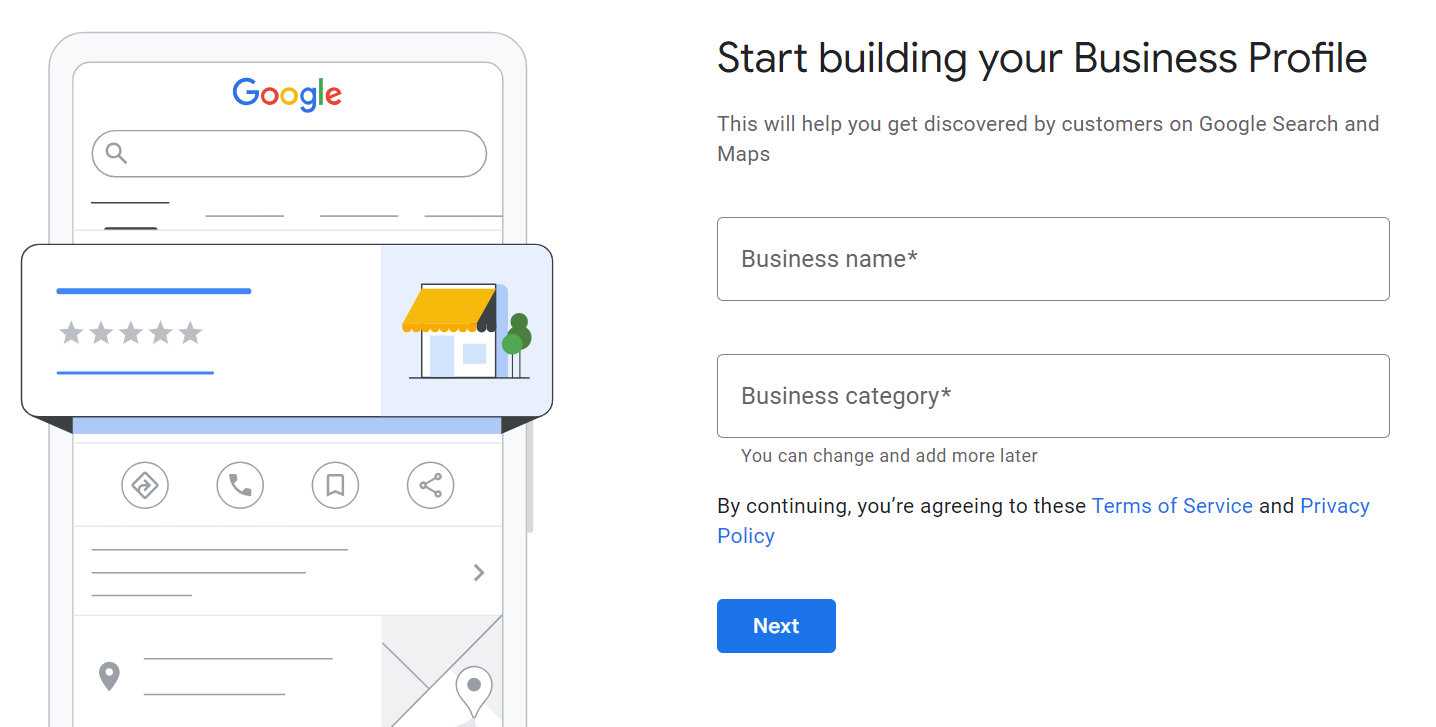
Enter your real business name and choose a suggested category, then continue. Example screen from Zarla’s setup walkthrough. Google may change the wording or order. Select the image to enlarge. -
Choose where you meet customers
The location choice decides whether customers see a street address or the area you serve. Answer based on how the business actually operates.
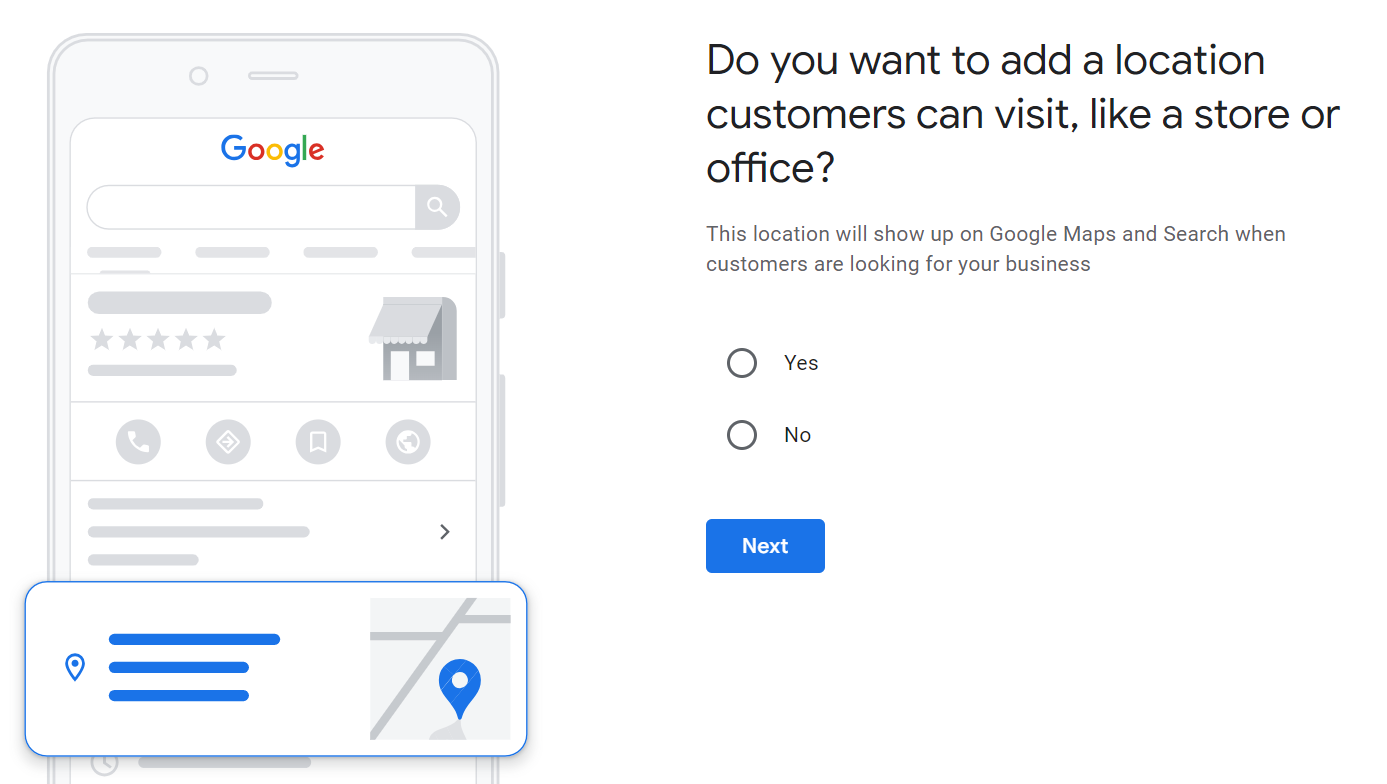
Choose Yes only for an eligible customer-facing location. Otherwise, use the service-area route. Example screen from Zarla’s setup walkthrough. Google may change the wording or order. Select the image to enlarge. For a service-area business, add the places you actually serve. Google accepts named areas such as cities or postal codes, with up to 20 areas. The overall area should generally stay within about two hours’ drive of your base. If Google separately asks for an address to verify the business, provide the real one and check that it remains hidden from customers.
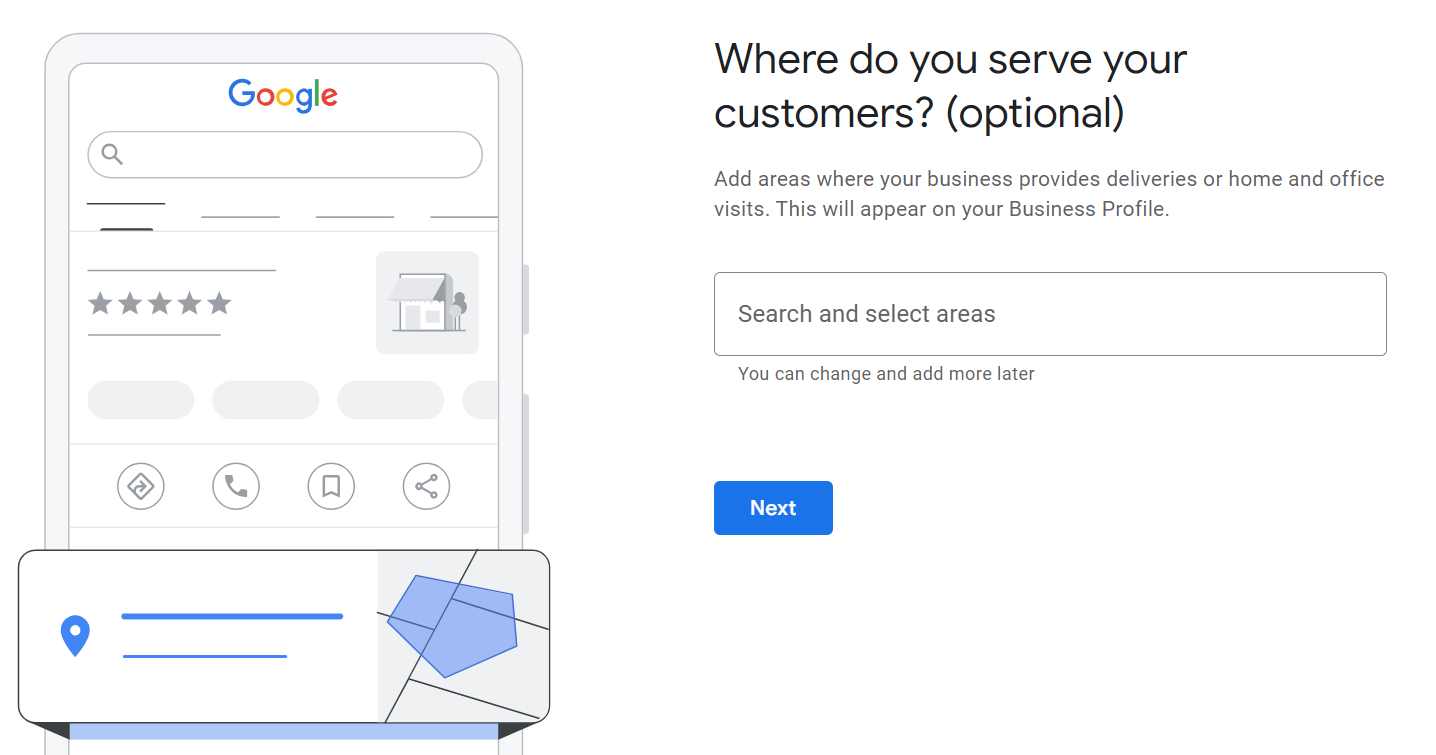
Service-area route: enter the cities or postal codes where you work. This is the area customers will see. Example screen from Zarla’s setup walkthrough. Google may change the wording or order. Select the image to enlarge. Storefront: public address · Service area: places you serve · Hybrid: both -
Add the details customers need
Follow the prompts for your business phone, website, and hours. Use a number your business answers and your actual website address. If you don’t have a website, leave that optional field for later. Check the information for accuracy before continuing.
You can finish details such as photos, services, and your description after verification. Google may show the setup questions in a different order.
Phone + website if available + accurate opening hours -
Complete Google’s verification
Verification is Google’s check that you represent this business. Choose one of the methods offered on your profile. Google decides which options appear, and some businesses need more than one. Phone, text, email, mail, and video are possible; availability varies.
If Business video is offered: use your phone at the business. Record through the verification flow in one continuous take of at least 30 seconds. Show the location, evidence the business operates there, and proof you manage it. Keep people’s faces and sensitive personal details out of the recording. A previously recorded video cannot be uploaded instead.
Get verified → Business video → Next → Start recording → review → Upload videoGoogle’s demonstrations show what the recording should include:
If you receive a verification code, enter it yourself in your profile. Keep it private, including from anyone helping manage the listing. Follow Google’s instructions for the method offered.
-
Wait for approval, then finish the profile
Google says verification review can take up to five business days. Check your profile and email for the result. If Google asks for more information, complete that request.
Once verified, check the public name, location settings, contact details, and hours. Add useful photos and complete the relevant services or products. When you want help managing it, follow our guide to adding a Manager.
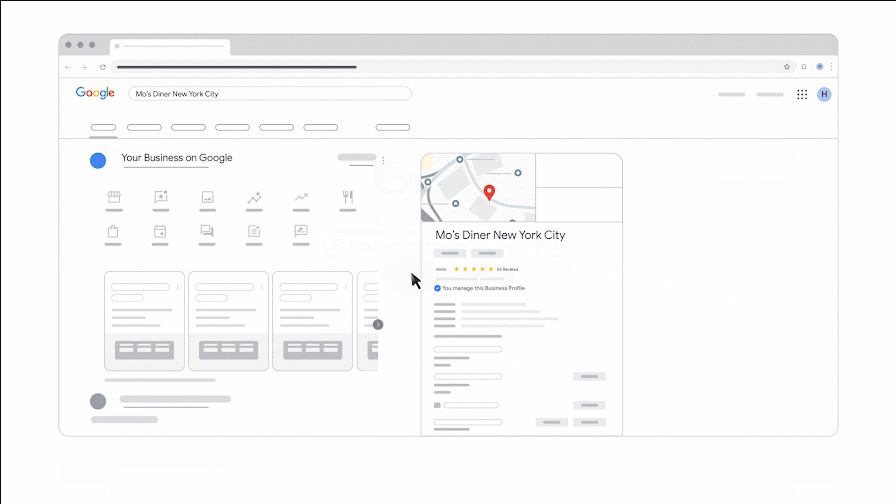
Google’s illustrated example of the management controls. Source: Google Business Profile Help. Search your business name while signed in to the owner account to find your own controls.
You’re finished when…
Google has confirmed verification, you can manage the correct listing from your own account, and your business details are accurate. Submitting the form or uploading a video is a step toward approval, not confirmation that verification is complete.
If you get stuck
Do I need to pay for Google Ads?
Adding and claiming a Business Profile is free. Advertising is separate; you can complete the profile without buying ads.
I work from home. Should I show my address?
If you visit customers and they do not visit you, use a service-area profile and keep your address hidden. A virtual office or rented mailing address is not a shortcut to a storefront listing. Check Google’s location rules if your situation is unusual.
I only see video verification
Use the available method. Google chooses the options for each profile. Check its video requirements before recording so you can show the location, business, and proof of management in one take.
Google did not accept my video
Open Review issues, read what was missing, and record a new complete video that covers those points. If you remain stuck after following the available methods, contact Google Business Profile support.
Will this put me at the top of Google?
Verification gives you control of the profile. It does not guarantee a search position. Keep the information accurate and useful for customers.
Official instructions
- Google: add or claim your business
- Google: which businesses qualify
- Google: business names, categories, and location rules
- Google: service-area and hybrid businesses
- Google: verification methods and review
- Google: video-recording requirements
- Google: edit and complete your profile
Instructions checked September 6, 2026. Screenshots are credited examples from published walkthroughs, not captures of your account. Google’s prompts and available verification methods can vary.
Ready to give your agency access?
 Browse all setup and access guides →