How to set up Google OAuth in n8n (Gmail, Sheets & Calendar)
Connecting Gmail, Google Sheets, or Google Calendar to an n8n automation is the step that trips most people up, not because it's hard but because Google's setup has a few moving parts that have to line up exactly. This guide walks the whole path and calls out the three things that cause 90% of the errors.
- In Google Cloud Console, create a project
- Enable the API you need (Gmail / Sheets / Calendar)
- Configure the OAuth consent screen and add yourself as a Test user
- Create an OAuth client ID (type: Web application)
- Paste n8n's redirect URL into the client, then copy the Client ID + Secret into n8n and sign in
1. Create a Google Cloud project
Go to console.cloud.google.com and sign in with the Google account that owns the Gmail/Sheets/Calendar you want to automate. At the top, open the project dropdown and click New Project. Name it something like n8n-automations and create it. Make sure that new project is selected for the next steps.
2. Enable the API you need
Go to APIs & Services → Library and enable the specific API that matches your n8n node:
- Gmail node → enable Gmail API
- Google Sheets node → enable Google Sheets API
- Google Calendar node → enable Google Calendar API
- Google Drive node → enable Google Drive API
Search for it, click it, and press Enable. If your workflow touches more than one (e.g. Gmail and Sheets), enable each one. Forgetting this is a common cause of "API has not been used / is disabled" errors later.
3. Configure the OAuth consent screen
Go to APIs & Services → OAuth consent screen (Google sometimes labels parts of this "Branding" and "Audience"). Choose External as the user type, then fill in the basics: an app name, your support email, and a developer contact email. You can skip the optional fields.
4. Create the OAuth client ID
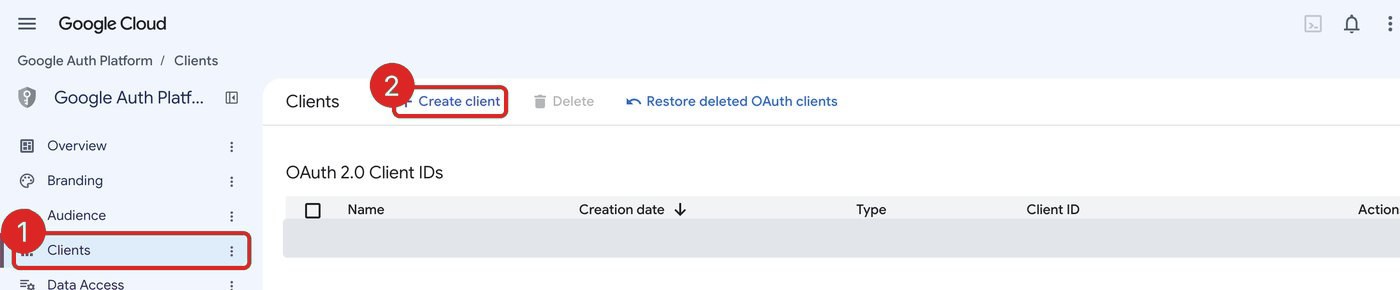
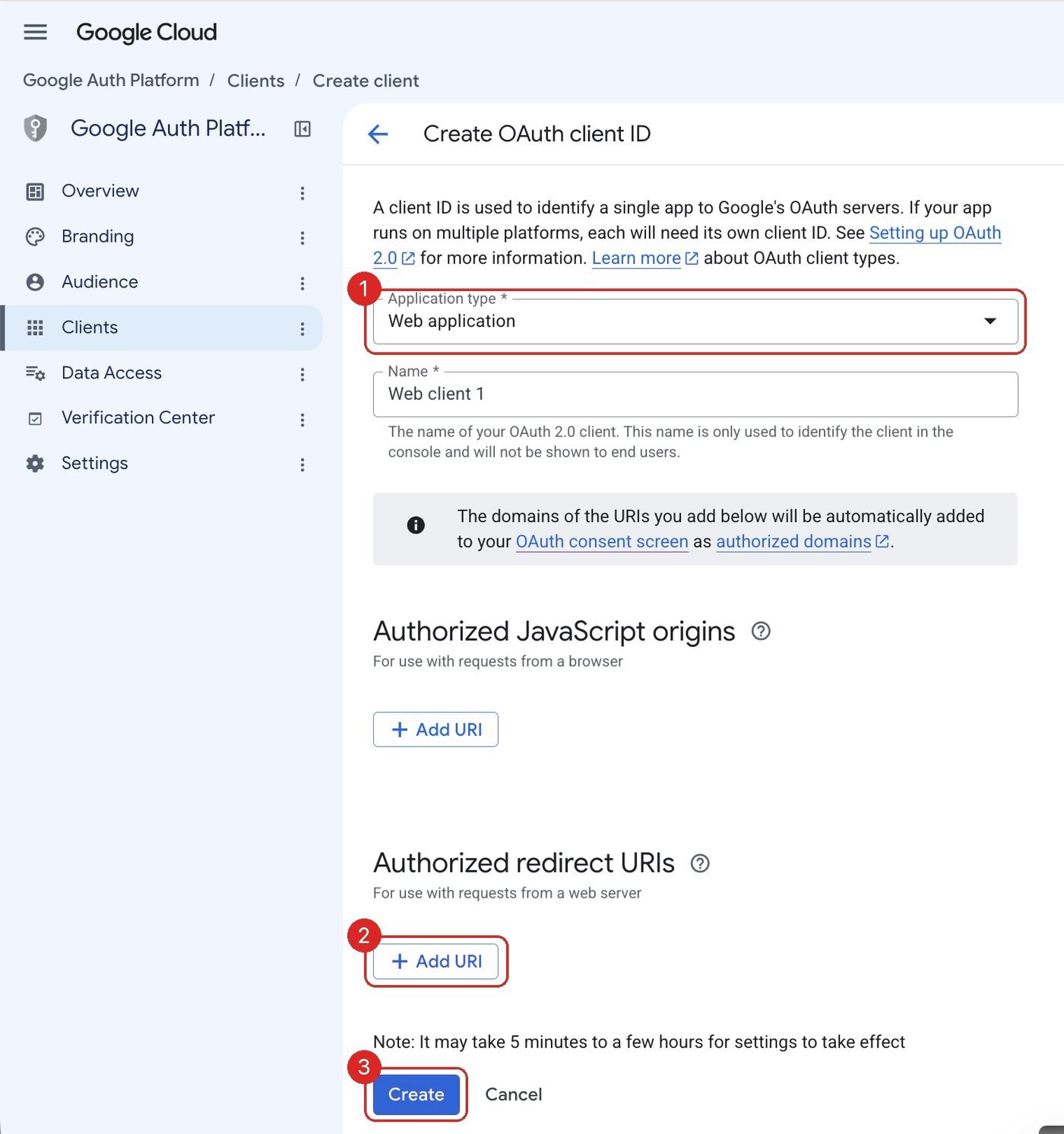
Open Google Auth Platform → Clients and click Create client. (Older screens call this APIs & Services → Credentials → Create Credentials → OAuth client ID.) For Application type, choose Web application and give it a name (e.g. n8n). Don't close this screen yet. You'll add the redirect URL in the next step.
5. Match the redirect URL between n8n and Google
This is the step that connects the two systems, and it has to match exactly.
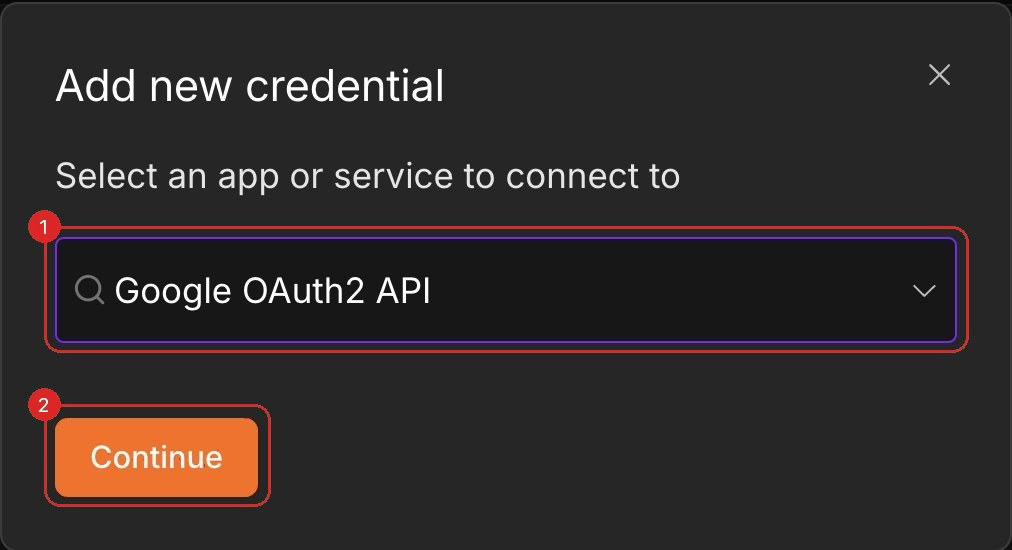
- In n8n, start a new credential for your node, e.g. Gmail OAuth2 API (or Google Sheets OAuth2 API, etc.). n8n will display an OAuth Redirect URL. Copy it.
- Back in Google Cloud, paste that URL into the Authorized redirect URIs field of your OAuth client, then save.
- Google now shows your Client ID and Client Secret. Copy both.
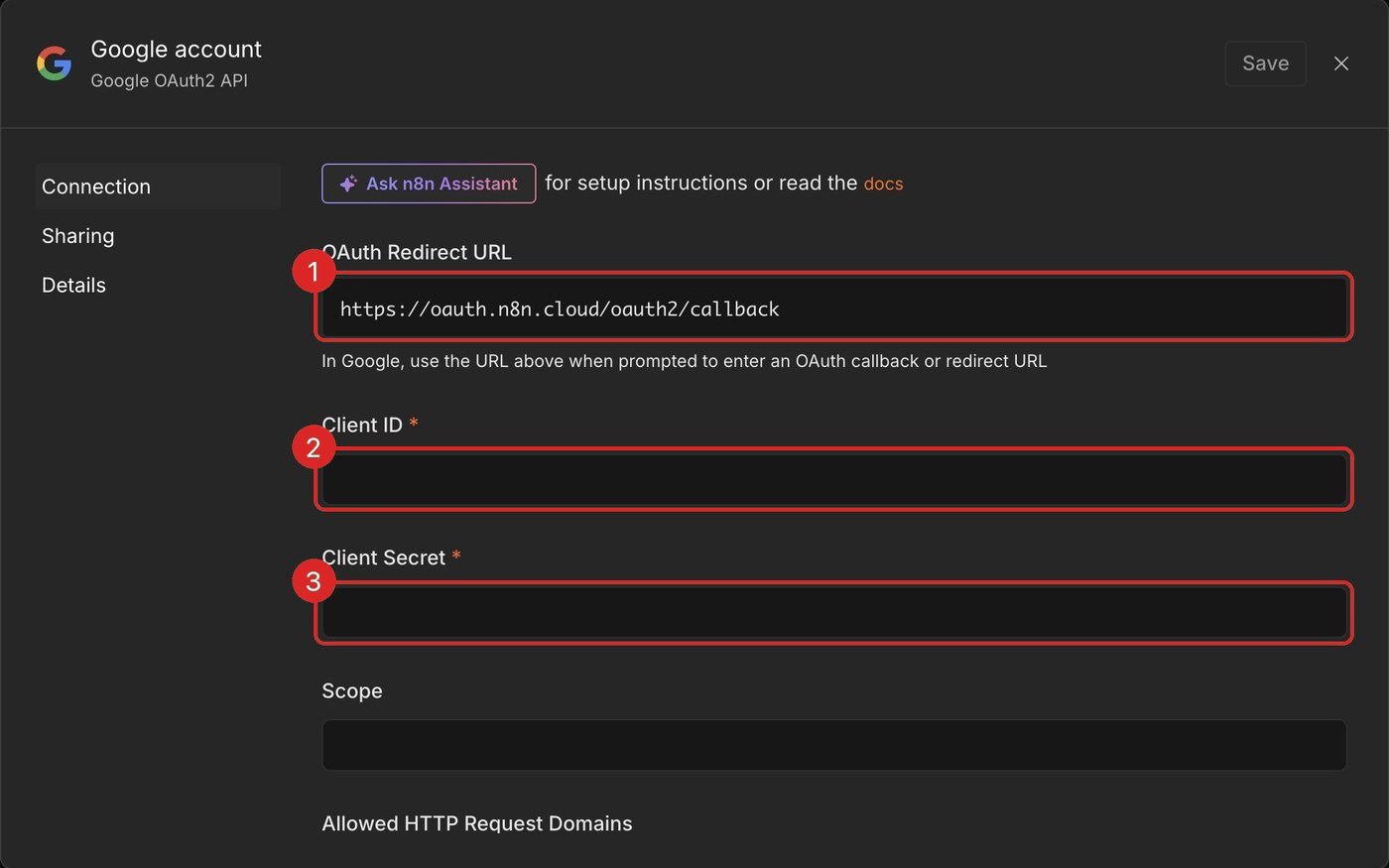
redirect_uri_mismatch error. Copy-paste it; don't type it.
6. Finish the connection in n8n
- Paste the Client ID and Client Secret into the n8n credential.
- Click Sign in with Google and choose the account you added as a Test user.
- You'll likely see "Google hasn't verified this app." That's expected for a private app. Click Advanced → Go to (your app) → allow the requested permissions.
- n8n confirms the account is connected. Open your node, run Test step, and you should see live data.
Fix the common n8n Google OAuth errors
Almost every failed Google connection in n8n is one of these three. Match the error message to the fix:
redirect_uri_mismatch. The most common one. n8n generates its own OAuth redirect URL and shows it on the credential screen. Copy that exact URL into Authorized redirect URIs on your Google OAuth client. It has to match character-for-character, including https and the full path. On n8n Cloud the URL contains your instance subdomain, so if you changed instances or your URL moved, update it in Google. Save, then retry after a minute (Google can take a moment to propagate).
"Access blocked" / "Google hasn't verified this app." While your app is in Testing mode (normal for a private automation), only accounts listed as Test users can authorize it. Add the Google account you're connecting with under the consent screen's Audience → Test users, then sign in again. The "not verified" warning is expected for a private app: click Advanced, then Continue.
The credential modal is missing the Client ID / redirect fields. That usually means the wrong credential type. Use the Google OAuth2 credential that matches your node (e.g. Gmail OAuth2), not a generic API key credential. Reopen the node's credential dropdown and pick the OAuth2 option.
Official reference
Google reorganizes the Cloud Console fairly often, so if a screen looks different, trust the source: Google's Cloud Console and n8n's own Google OAuth2 credential docs, which list the exact steps per node.
FAQ
I get "access blocked / app not verified." What's wrong?
While your app is in Testing mode, only listed Test users can sign in. Add your Google account as a Test user on the OAuth consent screen, then retry. The "hasn't verified this app" warning itself is normal for a private app. Click Advanced and continue.
I get redirect_uri_mismatch.
The redirect URL in your Google OAuth client doesn't exactly match the one n8n shows. Copy n8n's OAuth Redirect URL and paste it into Authorized redirect URIs, no typos, no extra characters.
Do I need an "API key" or OAuth?
For Gmail, Sheets, and Calendar nodes, n8n uses OAuth2: a Client ID and Secret, not a plain API key string. You create an OAuth client and sign in with your Google account.


Want us to set it up for you?
We build AI lead generation and CRM automations in n8n, and handle the Google wiring, scopes, and credentials so you don't have to.
Book a free 30-minute call