Claude Code tutorial for beginners: how to install and use it
Claude Code lets you build real software by describing what you want in plain English. You do not need a coding background to start. This guide walks you from a blank computer to your first working project, and explains each new idea with a simple, everyday comparison so nothing feels like jargon.
Think of it like
Hiring a skilled assistant who sits at your computer. You tell them the goal ("build me a page that collects emails"), they do the technical work, and they show you exactly what they are about to do before anything becomes permanent.
- Install a code editor: VS Code or Google Antigravity
- Install Claude Code, then sign in once
- Open your project folder and open the terminal
- Write a
CLAUDE.mdso Claude remembers your project - Ask in plain English, review the changes, and approve
First, what Claude Code actually is
Claude Code is an AI assistant that works directly with the files on your computer. It reads your project, writes and edits code, and runs the commands needed to build and test things, all from plain-English instructions. The important part for beginners: it checks with you before doing anything major, so you are always in control.
This is different from the Claude chat app. The chat app talks with you in a window. Claude Code rolls up its sleeves and works on your actual project.
Step 1: Install your editor (VS Code or Antigravity)
An editor is the app where you and Claude do the work. You only need one. Both options below are free and work on Mac and Windows.
Think of it like
A kitchen. VS Code is the standard, fully-stocked kitchen most people already know. Antigravity is a newer smart kitchen with an AI sous-chef built in. Either one is fine. Claude Code is the chef you are directing.
VS Code · recommended
The most widely used editor. Stable and beginner-friendly.
- Go to code.visualstudio.com
- Download for your system and run the installer
- Open the app
Google Antigravity · AI-first
A free editor built on the same core as VS Code, with AI agents included.
- Go to antigravity.google and click Download
- Run the installer and open the app
- Sign in with a Google account, then pick a model
Step 2: Install Claude Code
Claude Code is the assistant itself. You install it once, then start it from your editor's terminal (more on the terminal in the next step). Paste the line for your system:
Think of it like
Adding an app to your phone. One command downloads it, and you sign in once. After that, it is just there whenever you need it.
# Mac & Linux
curl -fsSL https://claude.ai/install.sh | bash

# Windows (PowerShell)
irm https://claude.ai/install.ps1 | iex

# Then start it inside your project folder
claude
claude --version. Real output from September 27, 2026; your version number will be newer. Select the image to enlarge.
The first time you run claude, it asks you to sign in through your browser. Running Claude Code needs a paid Claude plan (such as Pro or Max) or Anthropic API credits to power the AI. Prefer buttons over commands? In VS Code you can also install the Claude Code extension from the Marketplace for a visual panel with side-by-side change previews.
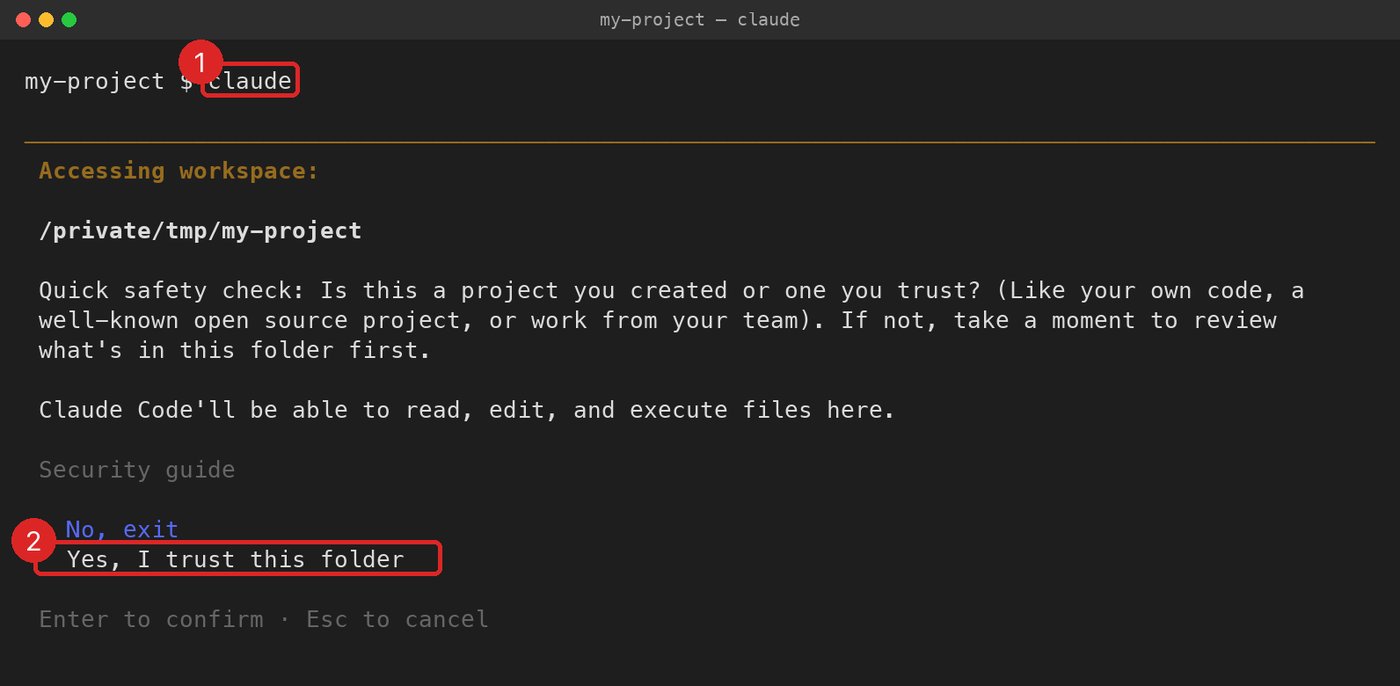
claude in a folder (1), it asks whether you trust it. For your own project, choose Yes, I trust this folder (2) and press Enter. Real screen from an empty demo folder. Select the image to enlarge.Step 3: Find your way around
VS Code and Antigravity share the same layout. Learn these three areas and you can find everything else.
Think of it like
A workshop. The file list on the left is your filing cabinet (every document in the project). The editor in the middle is your workbench (where you look at one thing at a time). The terminal at the bottom is the intercom you use to talk to Claude.
- File Explorer (left): the list of every file and folder in your project. Click one to open it.
- Editor (center): where files open in tabs so you can read and edit them.
- Integrated Terminal (bottom): where you run
claude. Open it withCtrl + `(the backtick key) or the View → Terminal menu.
One habit worth starting now: use File → Open Folder to open your project before you begin. Claude Code works on whichever folder is open, so this is how it knows what to work on. When you are unsure where a menu is, press Cmd/Ctrl + Shift + P to search every action by name.
Step 4: The CLAUDE.md file (what it is and why it matters)
By default, Claude Code starts each session fresh. A file named CLAUDE.md fixes that. It is a plain text file of instructions and context that Claude reads at the start of every conversation. Write it once, and Claude remembers how your project works from then on.
Think of it like
The note you leave a house-sitter. Rather than re-explaining everything each time, you write it down once: where things are, how to run the project, and the house rules. Claude reads it before every session.
Put it in your project folder as CLAUDE.md, and fill it with the things you would tell a new teammate:
- How to run and test the project (the commands you use)
- What lives where (the folder layout)
- Your tech stack, in one line ("a simple website using HTML and Tailwind")
- Any habits to follow ("always test before finishing")
/init inside a Claude Code session. Claude reads your project and drafts a starter CLAUDE.md for you. Then you edit it to taste.
A realistic starter looks like this:
# My Todo App

## Build & Test
- Run `npm install` to set up
- `npm start` runs the app at http://localhost:3000
- `npm test` runs the tests
- Always run tests before finishing a change

## Project Structure
- /src/components/  the on-screen pieces
- /src/api/         talks to the backend
- /public/          images and static files

## Conventions
- Use 2-space indentation
- Keep it simple and readable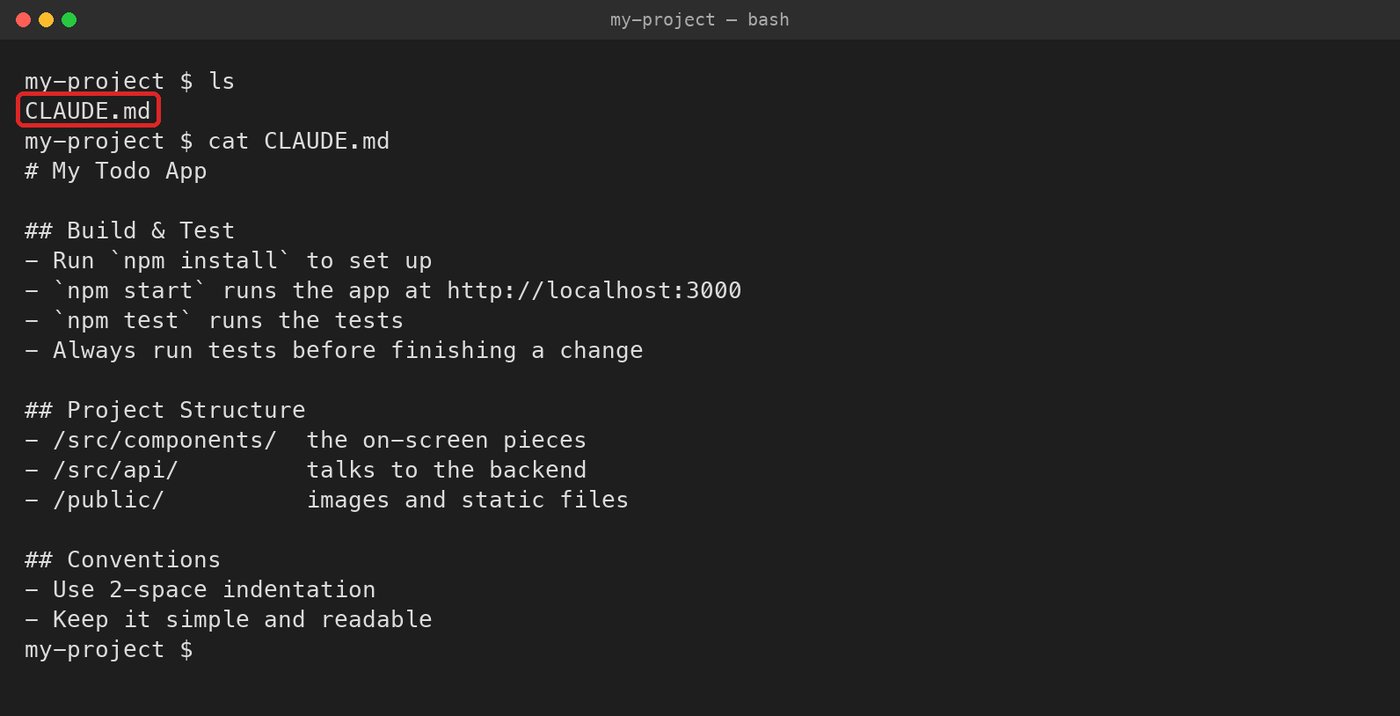
CLAUDE.md (outlined) in the project folder. Claude reads it at the start of every session. Select the image to enlarge.Step 5: See it in action (example prompts to try)
Now the fun part. You type a request in plain English, Claude reads the relevant files, shows you what it plans to do, and waits for your go-ahead before changing anything.
Think of it like
A contractor who shows you a sketch before knocking down a wall. Claude shows you the before-and-after and waits for your yes. Nothing changes without your approval.
Here is a short, real session. You type the lines after the >, Claude does the rest:
> what does this project do?
  Reading the main files...
  This is a simple website that collects email
  signups and saves them to a list.

> add a "thank you" message after someone signs up
  I'll update the form to show a confirmation.
  Here is the change I want to make:  [shows before / after]
  Apply this change? (yes / no)
> yes
  Done. Updated index.html.

> now make the button teal
  Updated the button color. Want me to preview it?
Notice the rhythm: you ask, Claude proposes, you approve. You can also ask it to explain anything ("what does this file do?") without changing a thing, which is a great way to learn as you go.
A few good habits to start with
Think of it like
Training wheels. At first, let Claude ask before every action so you can watch what it does. As you get comfortable, you can loosen that and let it move faster on the parts you trust.
- Start small. Ask for one change at a time so it is easy to see what happened.
- Read the preview. Before you approve, skim the before-and-after. This is where you learn the most.
- Save your progress often. Ask Claude to "save this to git" now and then, so you always have a snapshot to return to if something breaks.
- Ask questions freely. "Why did you do it that way?" is a fair prompt. Claude will explain.
Official references
Tools change over time. If a screen looks different from this guide, the official docs are the source of truth: the Claude Code documentation and its quickstart. For the editors, see code.visualstudio.com and antigravity.google.
FAQ
Do I need to know how to code?
No. You describe what you want in plain English and Claude Code does the technical work, showing you each change before it applies it. Knowing the basics helps you review its work, but you can start from zero.
Is Claude Code free?
Claude Code is free to install, but running it needs a paid Claude plan (such as Pro or Max) or Anthropic API credits to power the AI. You sign in once and your usage runs on that plan.
VS Code or Antigravity, which should I pick?
Both work the same way for Claude Code. VS Code is the widely used standard and the safe default. Antigravity is newer, built on the same foundation, with AI agents included. Pick whichever you prefer; you can switch later.
How is this different from the Claude chat app?
The chat app answers questions in a window. Claude Code works on your actual project files: it reads them, writes and edits code, and runs commands, always asking permission before changing anything.


Want us to build it for you?
We build AI lead generation and CRM automations, so you get the finished system without touching the technical parts.
Book a free 30-minute call